2026.10.21 Release
Now Available: Resolver 2026.10.21
Resolver 2026.10.21 has arrived! Read on to learn what's new.
Resolver 2026.10.21 is enabled by our latest connectors:
- Process Simulate Connector 1.28.0
- Visual Components Connector 1.24.0
Compatibility information for supported simulation tools and versions can be found on the minimum requirements page of the Resolver documentation site. We recommend always downloading the latest version of the Resolver Connectors, regardless of the version of the simulation tool you are using.
Release Highlights
Collision Set Generator, a Messages view for connector warnings, and Continue with Microsoft removal
- IMPORTANT: The Continue with Microsoft login button is being removed. Enterprise Microsoft Entra integrations are not affected.
- NEW: The Process Simulate connector has a Collision Set Generator. It can group the objects and generate collision sets for you, or you can group the objects yourself. Before export, you can enable, disable, or delete the sets it generates.
- NEW: Connector warnings and errors now collect in a stacked Messages view. They no longer open as separate popups.
Spotlight: Collision Set Generator
Collision sets generated from inside the RTR Resolver Viewer, previewed before they reach your study
Resolver can only avoid what it knows about, and building a complete set of collision sets by hand takes time. You asked for a faster way, so we built the Collision Set Generator. It works inside the RTR Resolver Viewer in Process Simulate and creates the collision sets for you. Objects attached to a robot, such as cabling, are included in that robot's sets.
Watch the walkthrough video below, then read on for the steps.
How it works
- Open the Collision Sets tab and choose a mode. Custom lets you sort objects into Robots, World, Part, and Tooling groups yourself. Auto asks you for a scope and does the grouping for you.
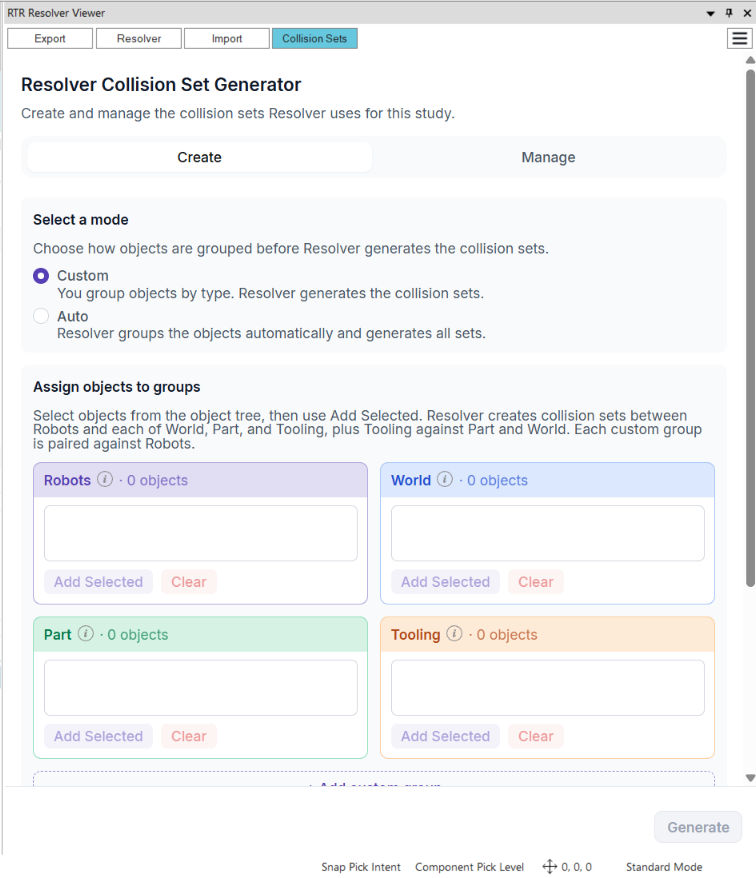
- Review the recommended near-miss clearance for each pair of groups, then name the collision set.
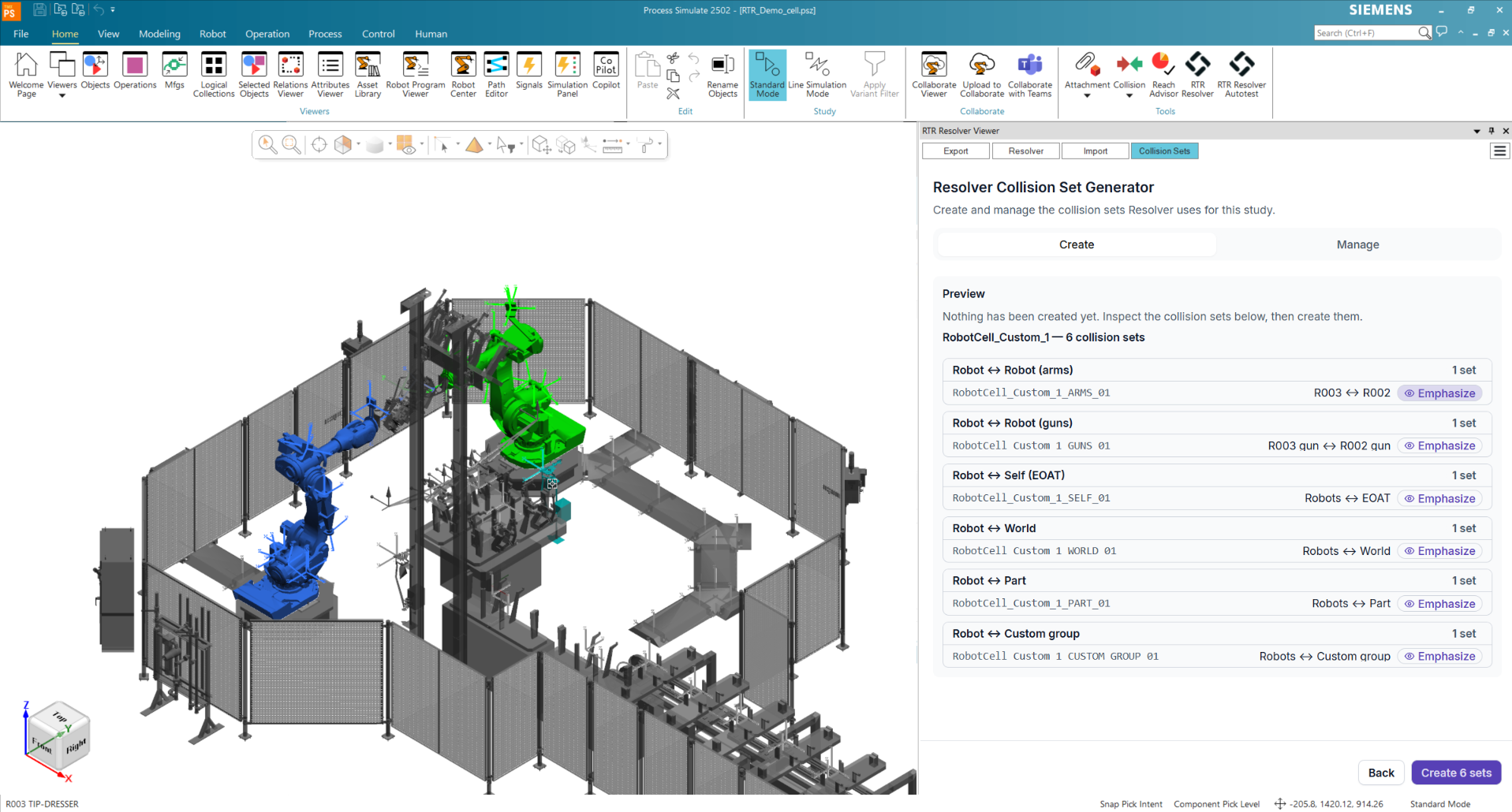
- Click Generate to preview every set before anything in your study changes. Emphasize highlights a set in the 3D view. When the preview looks right, click Create.
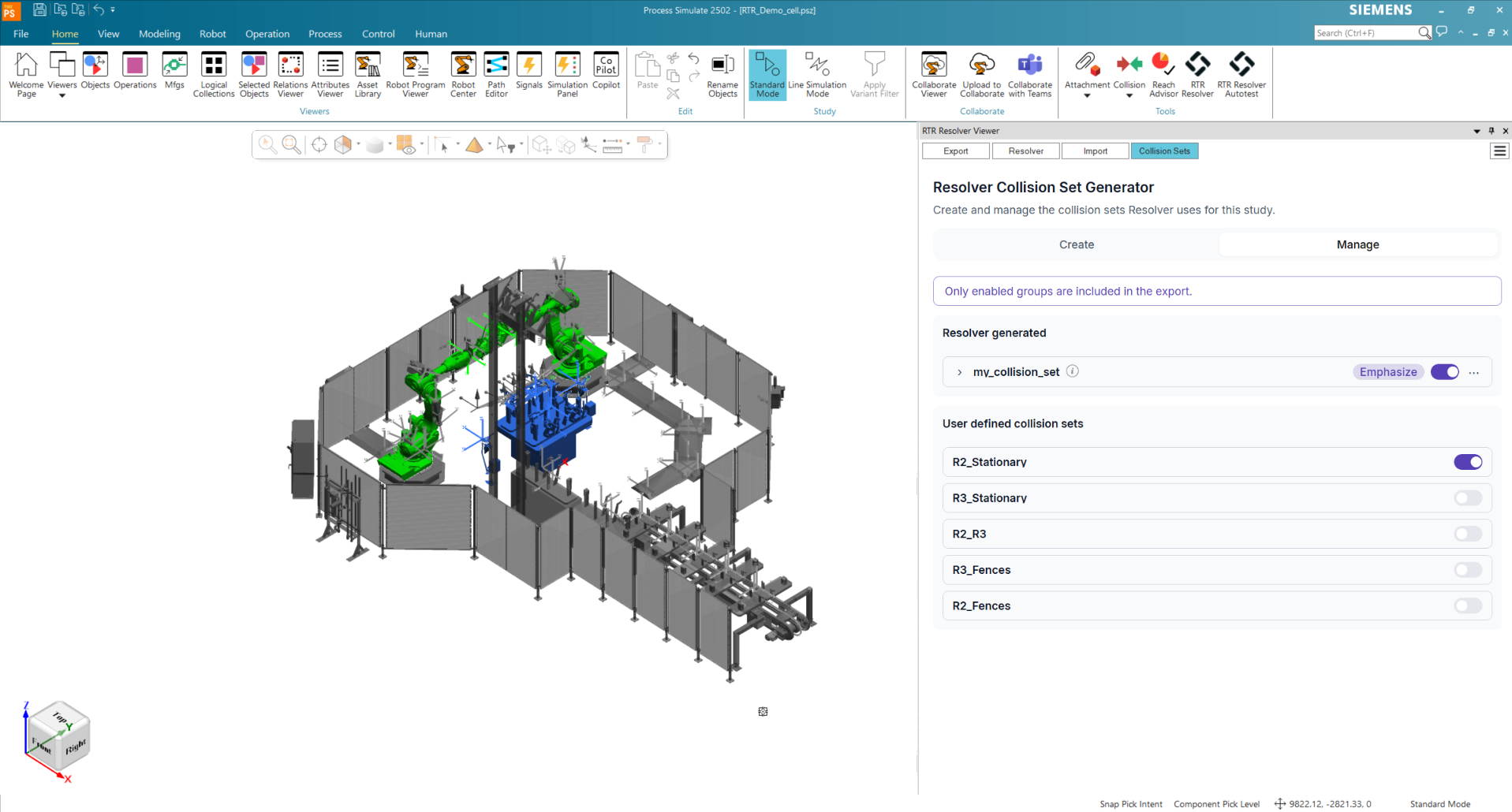
- On the Manage tab, generated groups sit alongside your own collision sets. Enable, disable, or delete them there, then export as usual.
- Note: Before you start, set Collision > Collision Report Level in Process Simulate to Lowest available level. At Component level, sets that include robot links won't work as intended. The generator prompts you to change the setting when it needs to.
- Note: In large studies, an Entire scene scope can produce a very large number of sets. Limit the scope to selected objects instead, and group by station with the neighboring stations included.
For the full procedure, see Generate collision sets in Process Simulate.
All Connectors
Microsoft sign-in, stacked messages, and project list sorting
Updates in this section apply to Process Simulate and Visual Components.
- IMPORTANT: Social sign-in through Continue with Microsoft will no longer be allowed. Microsoft Entra integrations will keep working. We will contact affected users individually.
- NEW: Connector warnings and errors now collect in a stacked Messages view instead of opening as one-off popups.
- NEW: The project screen now has sorting and scrolling, so long project lists are easier to browse.
Process Simulate Connector 1.28.0
Collision Set Generator, via parameters on import, and SD/ED validation detail
- NEW: Added the Collision Set Generator. Choose Auto to have Resolver group the objects and generate the collision sets, or Custom to group the objects yourself. Generated sets appear on a Manage tab, where you enable, disable, or delete them for export.
- Improved: Import now copies parameters from the original vias to the vias Resolver creates.
- Improved: Vias created by Resolver now use Cartesian as their Def Type.
- Improved: SD/ED validation failures for Fanuc robots now carry more information, so you can correct the gun setting before the export fails.
- Improved: Several usability improvements.
- Fixed: Various bug fixes.
Visual Components Connector 1.24.0
Pre-import checks
- NEW: Added pre-import checks. They catch robots missing from the layout, missing interlock robots, interlocks without a signal, a simulation that has not been reset, missing reference routines, and a changed motion type. You find out about these problems before the import starts.