How to Generate Collision Sets in Process Simulate
Labels: connector-ps, collision-rules
What you'll accomplish
By the end of this page you will have used the Collision Set GeneratorProcess Simulate Connector tool, in the Collision Sets tab of the RTR Resolver Viewer, that creates collision sets for a study. In Auto mode Resolver groups... to create collision sets for your study. You will also have chosen which of them go into the export. Resolver can only avoid collisions with objects it knows about, and the generator builds those sets for you so you don't have to assemble them by hand in the Collision Set Editor.
The Collision Set Generator requires PS Connector 1.28.0 or later.
Before you start
- Set the collision report level. In Process Simulate, set Collision > Collision Report Level to Lowest available level. At Component level, sets that include robot links won't work as intended. The generator prompts you to change the setting when it needs to.
- Open the study you plan to export in Process Simulate, with the RTR Resolver Viewer open.
Objects attached to a robot, such as cabling, are included in that robot's sets.
Steps
-
Open the Collision Sets tab in the RTR Resolver Viewer, and stay on Create.
-
Choose a mode.
- Custom lets you sort objects into groups yourself, and Resolver generates the collision sets from those groups.
- Auto asks you to choose a scope, then groups the objects and generates every set for you.
-
(Custom only) Assign objects to groups. Select objects in the Process Simulate object tree, then click Add Selected on the group they belong to: Robots, World, Part, or Tooling. Clear empties a group. Use + Add custom group for objects that don't fit the four standard groups.
Resolver pairs Robots against each of World, Part, and Tooling, and pairs Tooling against Part and World. Each custom group is paired against Robots.
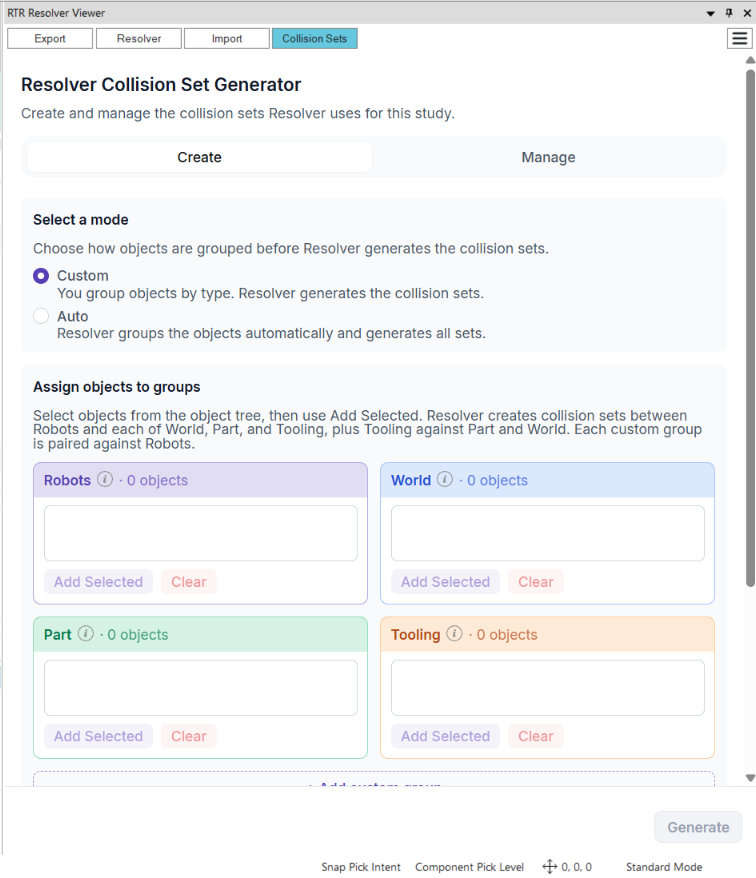
The Create tab in Custom mode, before any objects are assigned. -
Review the clearances and name the set. The generator recommends a near-miss clearance for each pair of groups. Check them, then give the collision set a name.
-
Click Generate. This opens a preview of every set the generator will create. Your study does not change at this step.
-
Check the preview. Each row lists one set and the pair of groups it covers, such as Robot ↔ World or Robot ↔ Part. Click Emphasize on a row to highlight that set in the 3D view. Use Back to change the groups.
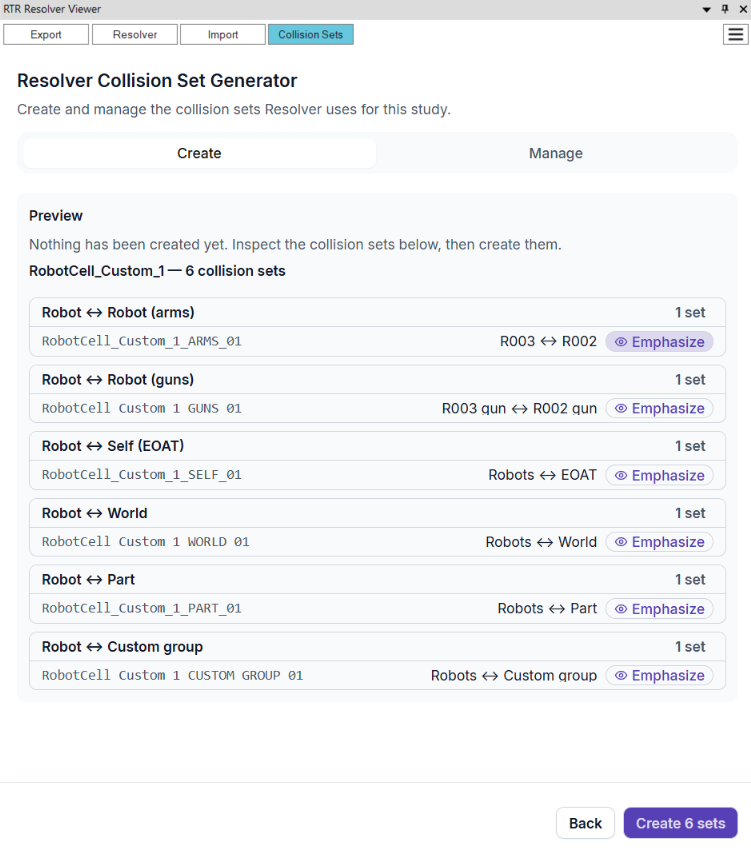
The preview names each set and the groups it covers. Nothing is created until you click Create. -
Click Create to add the sets to your study. The button shows how many sets it will create.
-
Choose what to export on the Manage tab. Resolver-generated groups are listed under Resolver generated, and your existing collision sets under User defined collision sets. Use each toggle to enable or disable a group, and Emphasize to see it in the 3D view. You can also delete generated groups from this tab. Only enabled groups go into the export.
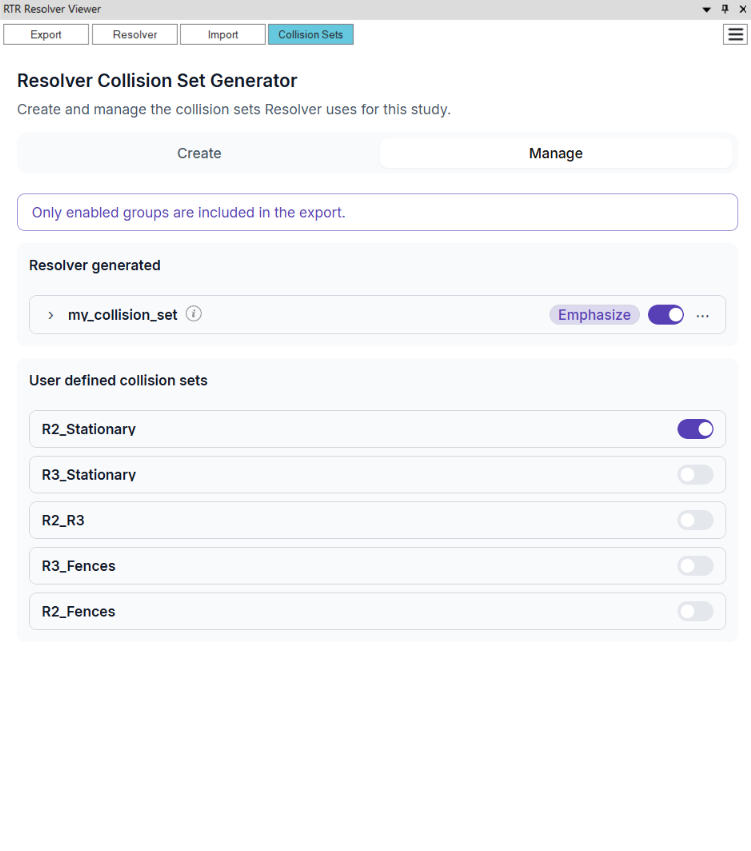
The Manage tab. Generated groups and your own collision sets are enabled and disabled from the same list. -
Export as usual. See Exporting Study.
Verify it worked
The Manage tab lists your new group under Resolver generated with its toggle on. Emphasize it and confirm the highlighted objects in the 3D view are the ones you meant to include.
Large studies
In a large study, an Entire scene scope can produce a very large number of sets. Limit the scope to selected objects instead, and group by station with the neighboring stations included.
Common failures
| Symptom | Likely cause | What to do |
|---|---|---|
| Sets that include robot links don't behave as expected | Collision Report Level is set to Component level | Set it to Lowest available level and generate the sets again |
| An object collides in Resolver's results | The object is not in any enabled set | Add it to a group and generate again, or check that its set is enabled on Manage |
See also Objects not included in collision sets and Missing collision sets.
Related
- Collision Rules, for how Process Simulate collision sets become Resolver collision rules
- Exporting Study, for the minimum collision sets Resolver recommends
- RTR Resolver Viewer