RTR Resolver Viewer
The RTR Resolver Viewer has four tabs:
- Export
- Resolver
- Import
- Collision Sets, which opens the Collision Set Generator (PS Connector 1.28.0 and later)

Updated 2026-10-21: this screenshot predates PS Connector 1.28.0 and shows only the first three tabs. See Generate Collision Sets for the Collision Sets tab.
Clicking on each tab changes what is shown in the viewer.
Clicking on the gear icon accesses the settings where you can access the following options:

Settings
Opens the Settings dialog where you can access the General, Export and Import settings. You can decide whether to save the changes in the settings via the "Save Settings" button or disregard the changes with the "Cancel" button.
General
The following settings are configurable under the General settings.
Automatically connect to the cloud
By default, "Automatically connect to the cloud" is turned on. This allows seamless export, data upload and import and requires login to Resolver via the Resolver tab of the RTR Resolver viewer.
With the "Automatically connect to the cloud" toggle turned on, the following settings are shown in the dialog:
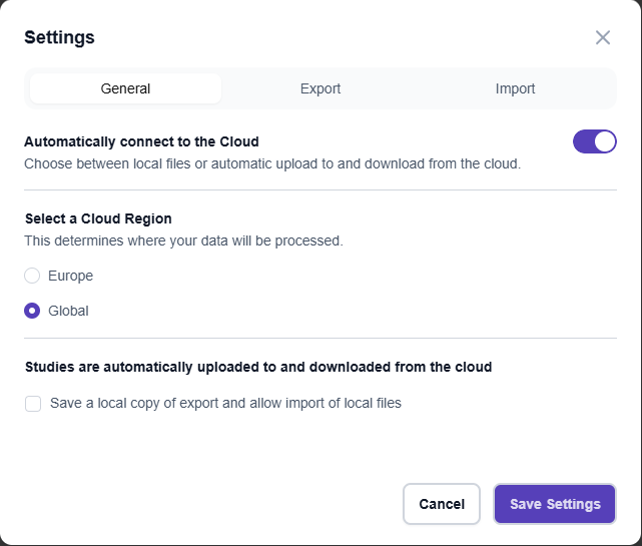
Select a Cloud region
This allows selection of the Cloud environment that the Resolver tab accesses during login:
- Europe: Located in Europe
- Global: Americas, APAC, all other countries.
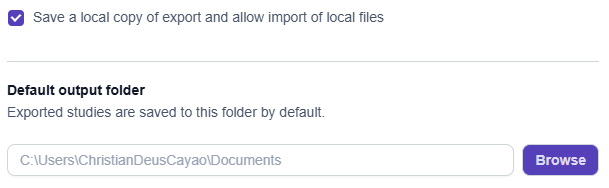
Save a local copy of export and allow import of local files
There is a checkbox at the bottom if you wish to save a local copy of export and allow import of local files even when exports are automatically uploaded to the cloud.
When this is checked, you can specify the default output folder for exported studies.
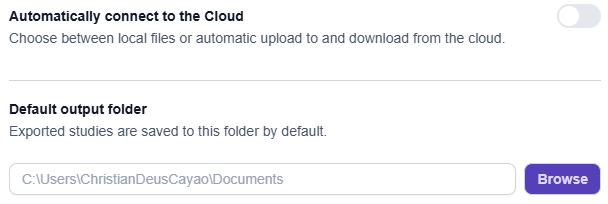
When "Automatically connect to the cloud" is turned off, you can specify the default directory to save the exported files via the Default output folder.
Export
The details on each of the configurable Export settings will be covered in the Exporting Study section.
Import
The details on each of the configurable Import settings will be covered in the Importing Results section.
About
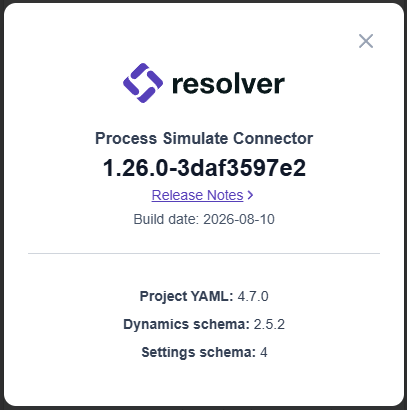
Opens a dialog showing the version information of the currently installed connector
Check for Updates
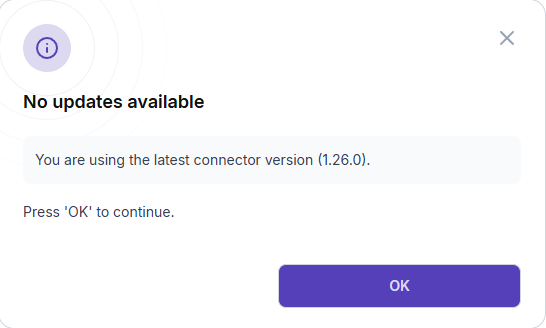
Allows the user to check for updates and download them if new updates are available. The dialog also informs the user if the currently installed version is already the latest.
Open in Browser
Opens the Resolver page in the browser.
Clear cache
Allows users to clear stored authentication data and reset the Resolver connection. Clearing the cache may resolve issues with Resolver such as display problems, connectivity errors or authentication failures.
Save Logs
Saves RTR logs of the current session to a specified location.
Messages
In PS Connector 1.28.0 and later, the connector collects its warnings and errors in a Messages panel at the bottom of the Export tab, below the connector version and the Export button, instead of opening each one as a separate popup. The panel header shows how many warnings there are, and each message can be expanded. Click Documentation next to a message to open its page in Process Simulate Troubleshooting. The panel also has a Save Logs link.