Download & Install
Get started with Resolver by downloading and installing the Visual Components ConnectorSoftware plugins, developed by RTR, that enables the export of projects from 3rd party simulation tools such as Process Simulate and Visual Components for use with Resolver. The Connector also enables....
Download
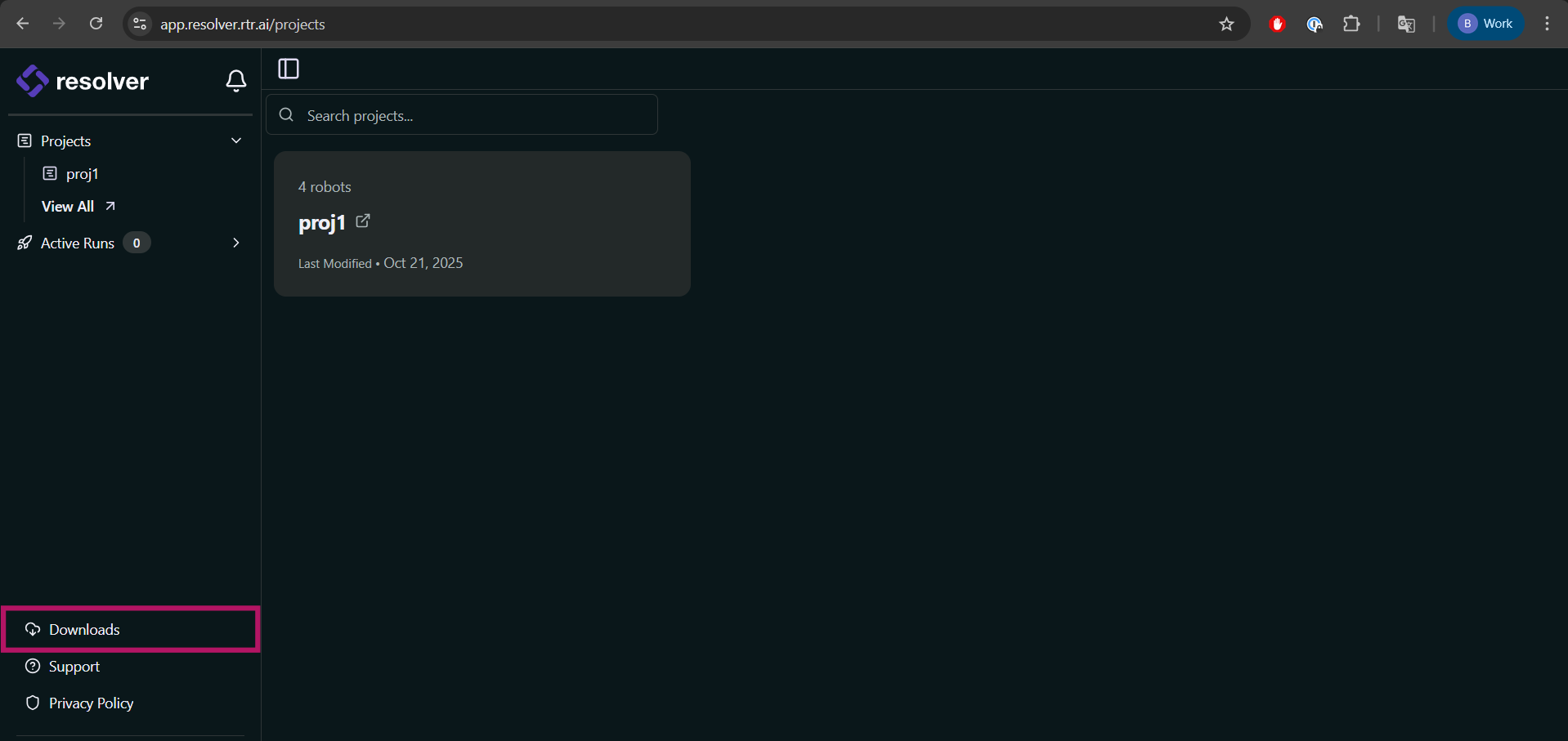
Log in to your region-specific Resolver page, then click Downloads in the bottom-left corner.
The latest version of the Connector is available on your Resolver account page. Click the Downloads button to go to the installers page.
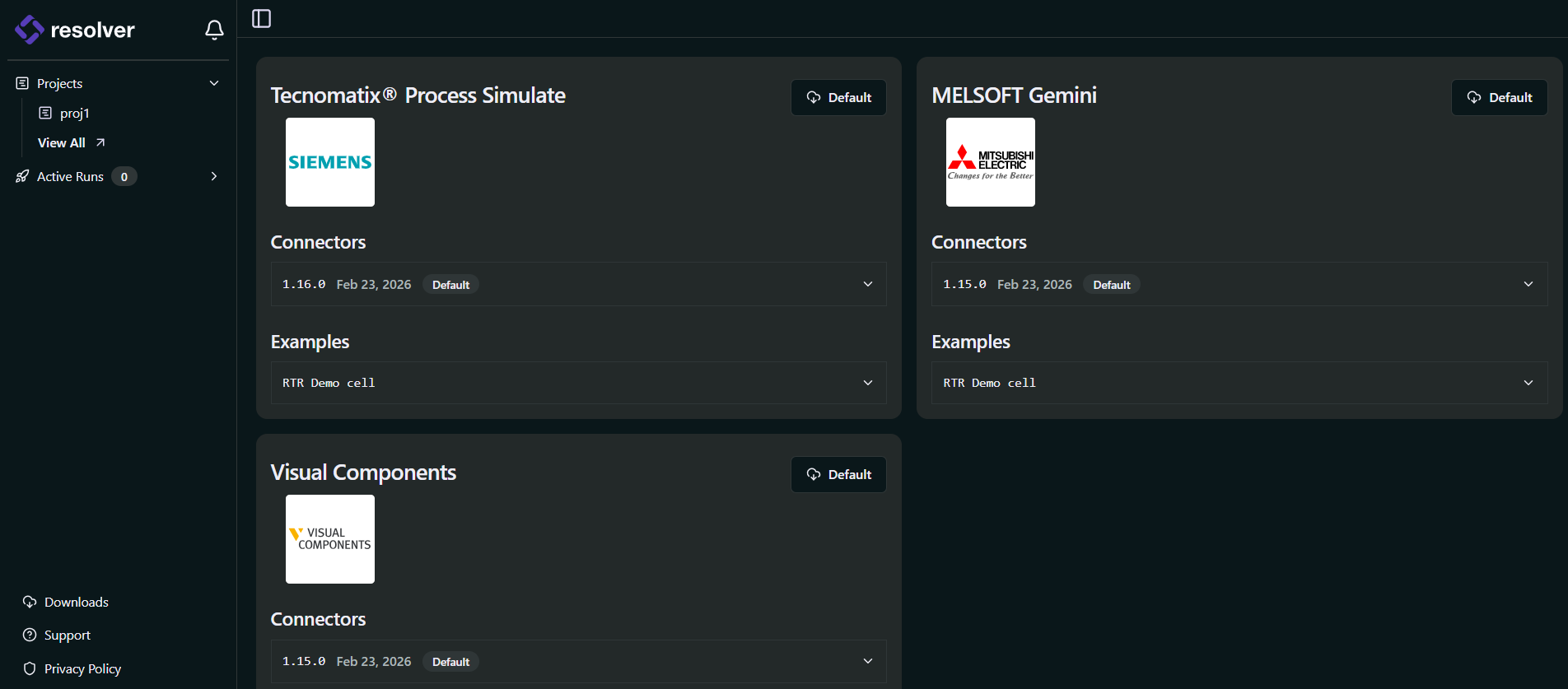
Click the Default button on the Visual Components card to download the latest version.
After downloading, there are two ways to install the Connector:
- Windows Installer — the preferred method.
- Legacy Installation — manual registration of DLLs as an alternate method.
Windows Installer (Preferred)
-
Close Visual Components before continuing.
-
Unzip the downloaded file and double-click
RTR-VC-Connectors-Setup.exeto launch the installer. -
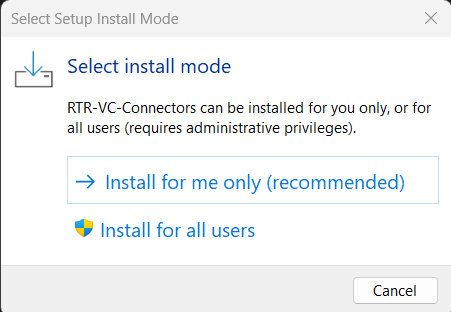
Select whether to install the Connector for the current user or all users.
-
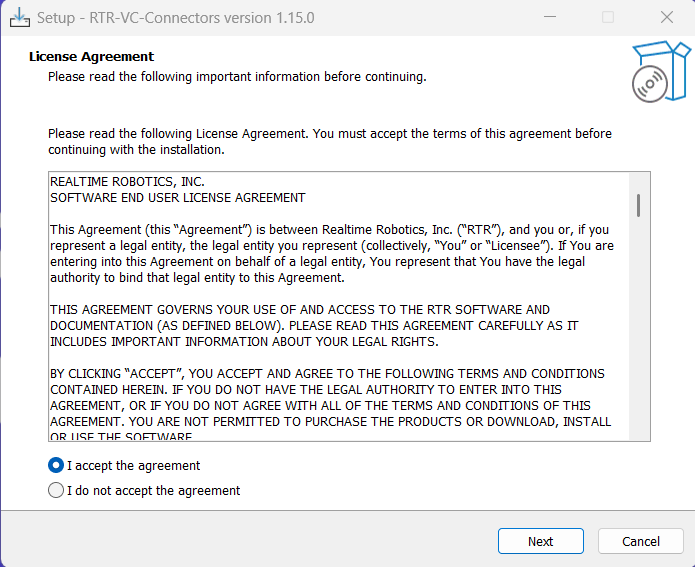
Read and accept the License Agreement.
-
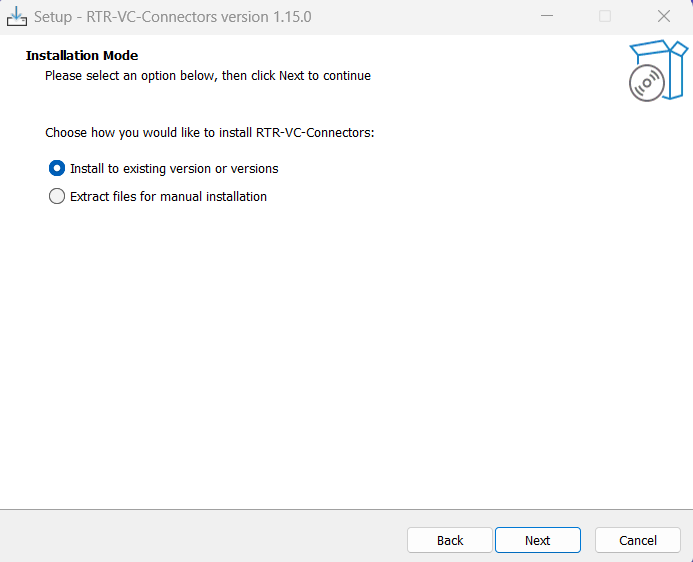
Click Next, then select Install to existing version or versions.
-
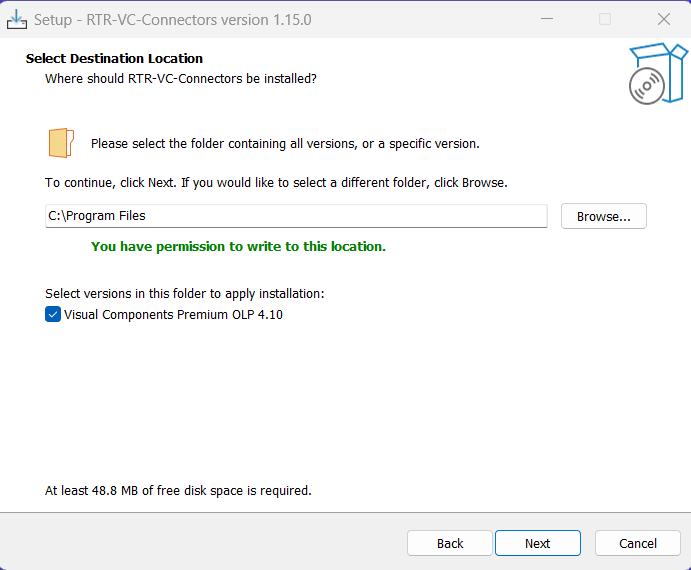
Choose the installation folder for the ConnectorSoftware plugins, developed by RTR, that enables the export of projects from 3rd party simulation tools such as Process Simulate and Visual Components for use with Resolver. The Connector also enables.... The default (
C:\Program Files) is recommended. -
Select the Visual Components version(s) to install to.
-
Click Install, then click Finish once the installation is complete.
-
Open Visual Components.
-
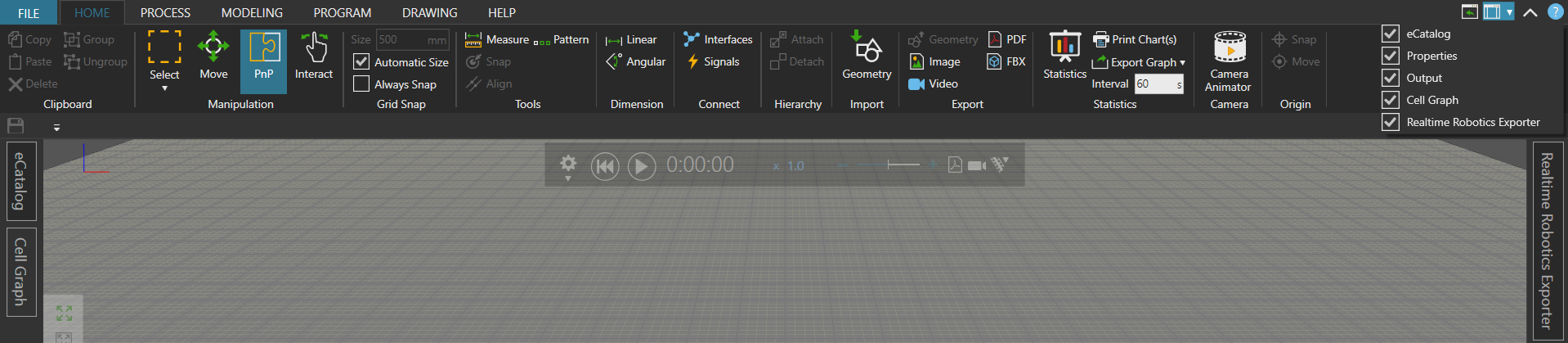
Click the dropdown menu at the top-right corner of the UI.
-
Enable Realtime Robotics Connector by checking the corresponding option.
Legacy Installation (Manual DLL Registration)
Follow these steps only if you need to manually place the DLL files into the Visual Components folder. This is not necessary if you used the Windows Installer above.
-
Close Visual Components before continuing.
-
Unzip the downloaded file and double-click
RTR-VC-Connectors-Setup.exeto launch the installer. -
Select whether to install the Connector for the current user or all users.
-
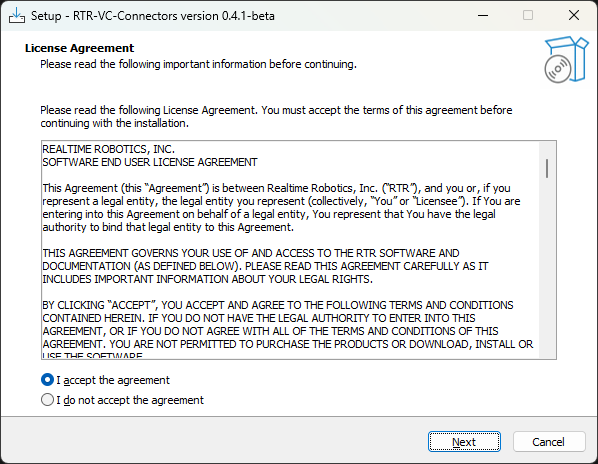
Read and accept the License Agreement.
-
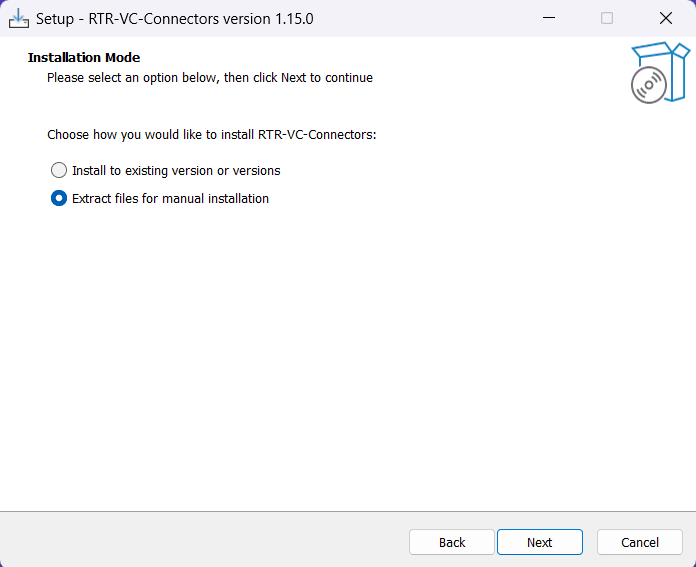
Choose Extract files for manual installation.
-
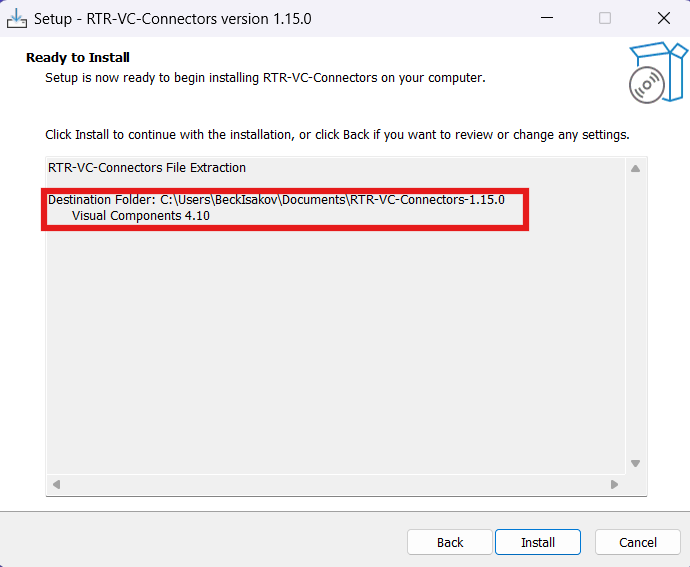
Choose the folder where you want the files to be extracted.
-
Select the Visual Components version(s) you need.
-
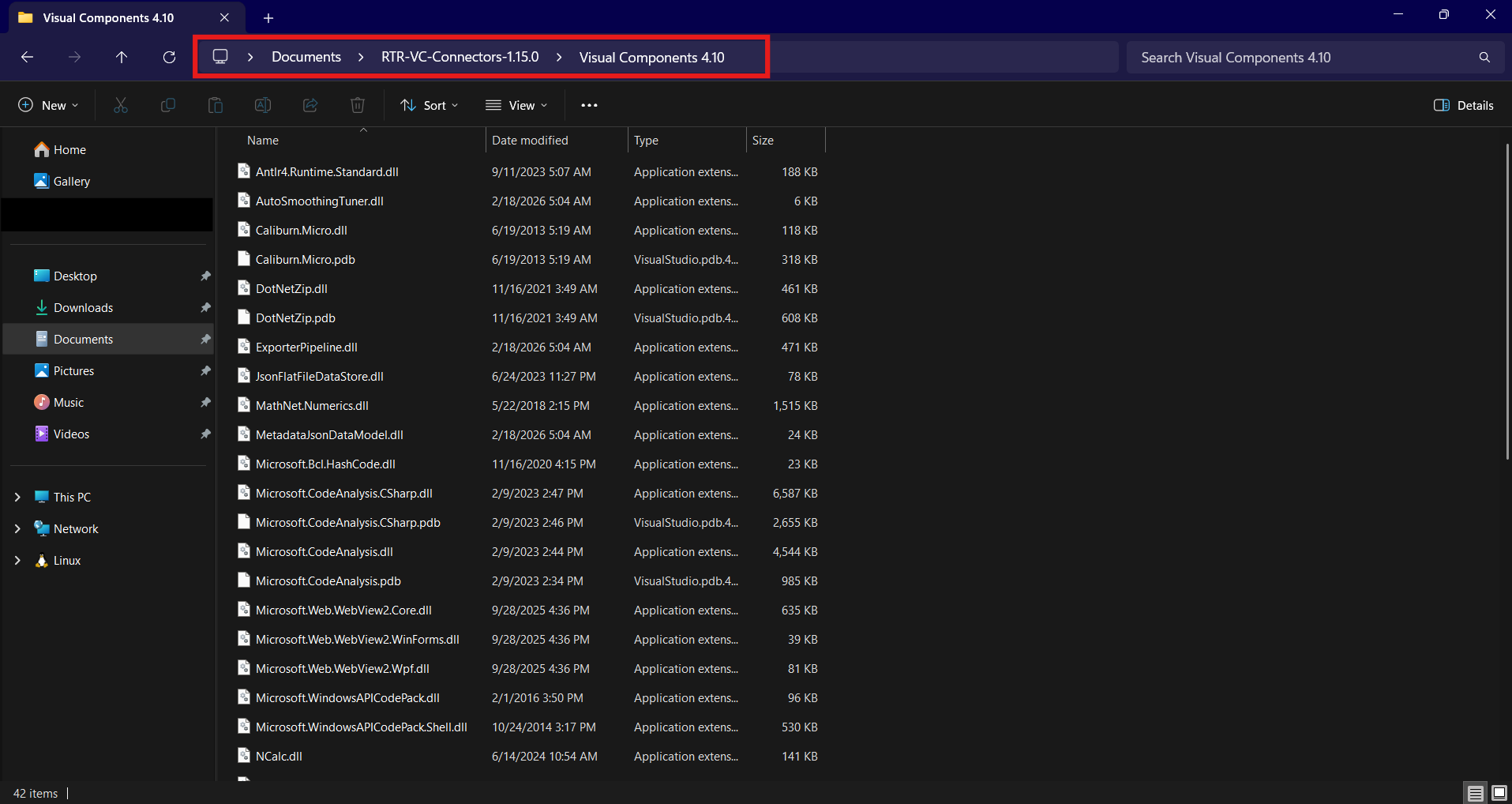
Navigate to the extraction folder you specified.
warningMake sure you open the correct subfolder for the Visual Components version you intend to use — Connector files differ between versions.
-
You will see all the Connector files in the folder.
-
Copy all the files to the appropriate Visual Components installation folder, for example:
C:\Program Files\Visual Components\Visual Components 4.10\tipReplace
4.10with the version number that matches your installation. -
Open Visual Components.
-
Click the dropdown menu at the top-right corner of the UI.
-
Enable Realtime Robotics Connector by checking the corresponding option.