Exporting Study
Preparing for Export
Displayed Objects
Only visible (unhidden) objects and robots at the time of export are included in the .zip.
Hide any unnecessary entities to:
- Speed up the export process
- Avoid unsupported-object export errors
If a robot is visible but has no associated operation, a dummy operation is exported with two targets at the current pose. This helps Resolver correctly place the robot. Otherwise, the robot defaults to its zero-joint position, which may cause planning issues.
What Gets Exported?
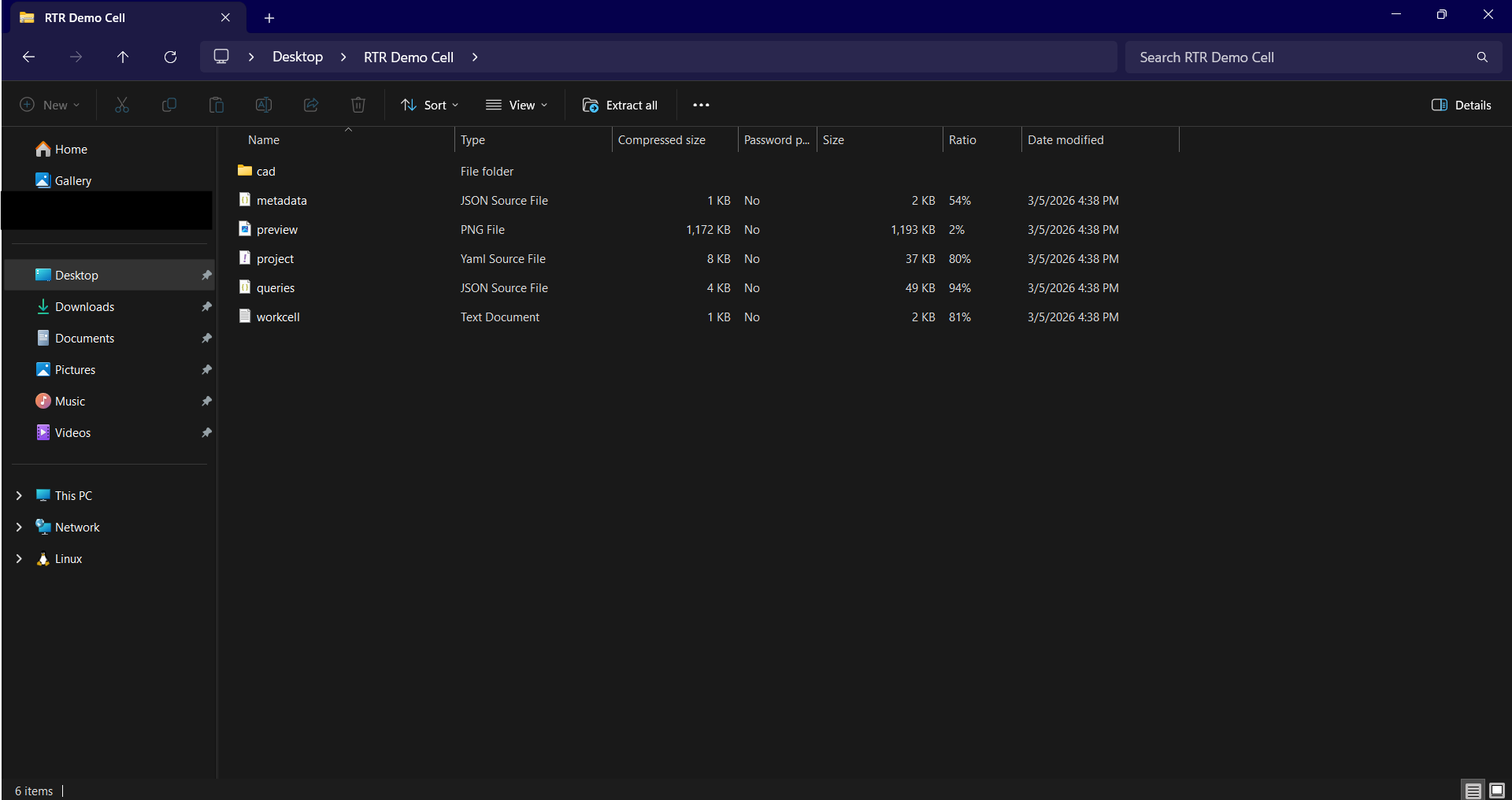
When a study is exported, a .zip file is generated for use with the Resolver engine. This archive contains the following files and folders:
| File / Folder | Description |
|---|---|
project.yaml | Defines how the engine builds the workcell. It references all items in the objects and robot_models folders and specifies how objects are positioned and mated. The full specification will be published in a future release. |
queries.json | Contains the query generated by the exporter — operations, targets, and precedence constraints. In Resolver Cloud this is editable through the Build Workflow UI; via the API (beta) it is displayed as editable plain text. |
metadata.json | Stores performance and study data used to improve the user experience in future versions. |
workcell.txt | Describes the joint hierarchy of the robots in the scene. |
logs.json | Logs data about the study and export process. |
cad/ | Contains .mf files of robot models, used alongside project.yaml to construct virtual robot models and environmental objects. |
Supported Applications
- Spot Welding
- Arc Welding
- Riveting
- Inspection
- Material Handling
- Machine Tending
- Linear Rails
Other applications may be supported upon request. If your use case is not listed, submit a support ticket to consult an RTR Application Engineer.
Exporting Sequences
The Connector exports one sequence (operation) per robot, and all sequences are executed in parallel. When selecting a sequence for export, ensure that:
- All sub-sequence calls or additional sequences are included within the main sequence being exported.
- Only the required targets are included (e.g., process points or essential vias).
- You run ⏮️ Reset before exporting — all robots and objects must be in their starting positions.
- The target order is preserved in the results.
Step-by-Step: Exporting from Visual Components
- In the Visual Components menu, navigate to the Realtime Robotics Connector. There are two ways to export the project to Resolver — Online and Offline:
- Online Export — Use this if your simulation PC has internet access.
- Offline Export — Use this if your simulation PC does not have internet access. The project is saved locally and transferred to Resolver Cloud later.
Online Export
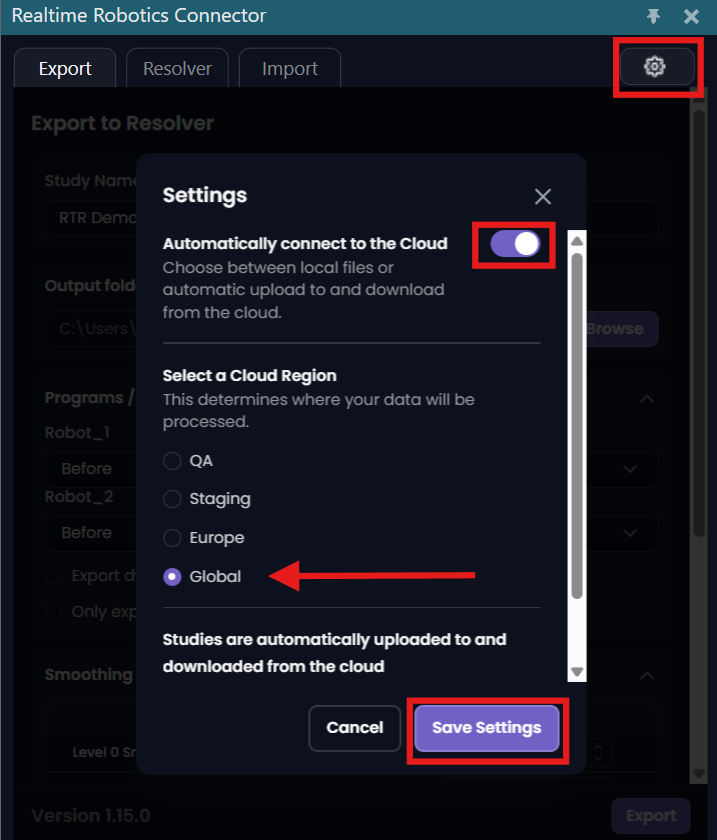
a. In the Realtime Robotics Connector tab, click the Gear icon and open Settings. Make sure Automatically connect to the Cloud is toggled on, then choose your region. If you are in Europe, select Europe; otherwise, select Global. Click Save Settings.
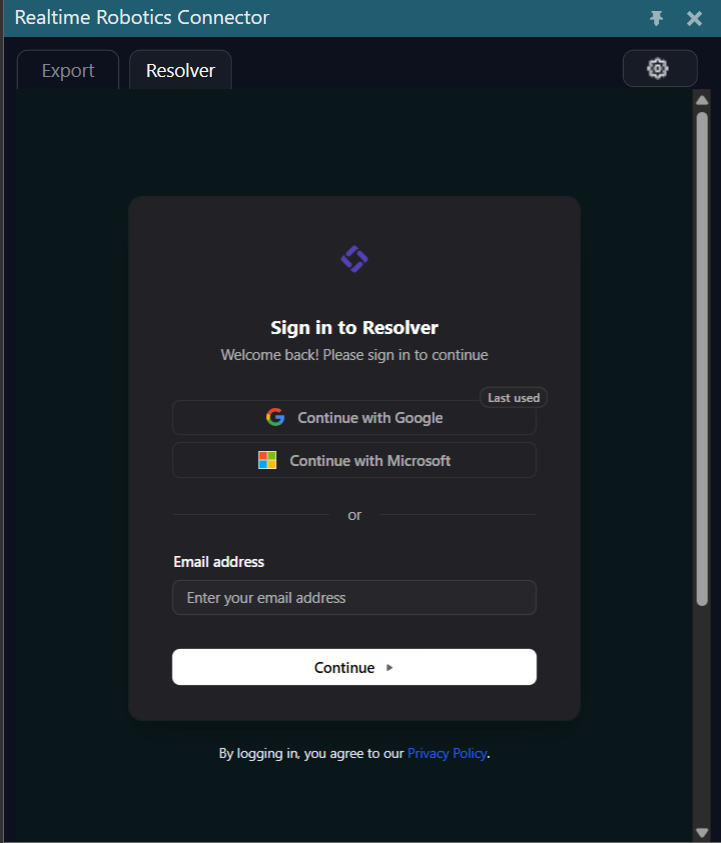
b. You will be taken to the Resolver tab, where you need to enter your Resolver credentials.
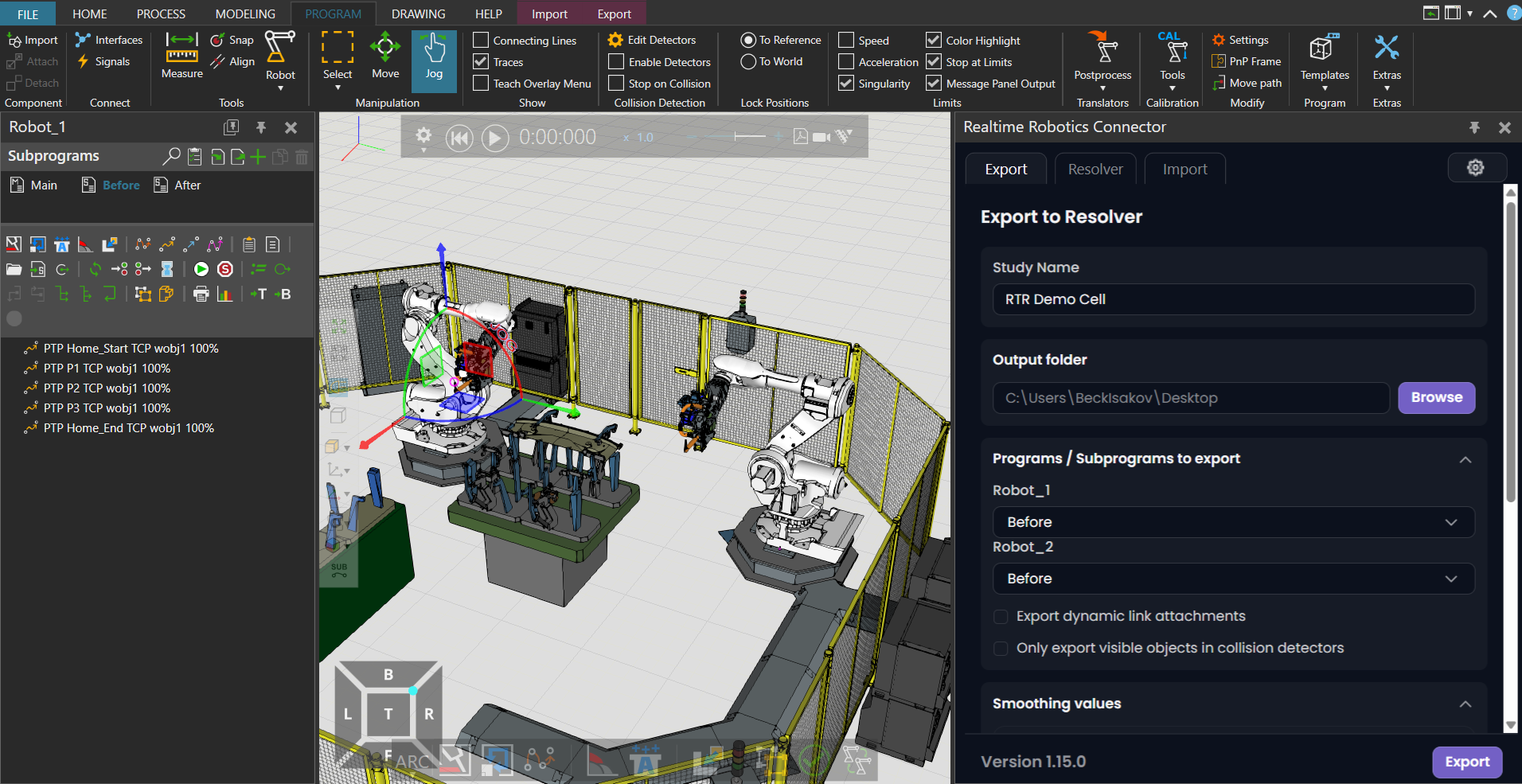
c. Specify the destination folder/path, select the sequences you want Resolver to optimize for each robot, and click Export.
Offline Export
In the Settings panel, make sure Automatically Connect to the Cloud is turned off. Then go to Export → Subprograms to export and select the sequence(s) for each robot.
-
Choose the output folder path where the zipped project will be saved locally:
- Enter a Name in the Study Name field (this is used as the filename for the
.zip). - Select the sequences for each robot.
- Enter a Name in the Study Name field (this is used as the filename for the
-
Click Export.
- Monitor the Output or Status panel of the connector for progress. Export time varies with cell size.
- On success, you will see a message like:
Created Zip file :\Path\To\Your\File.zip
Once the export is complete, upload the .zip file to Resolver Cloud to begin processing.