Importing Results
Importing Results from Resolver Cloud
After successfully completing a run in Resolver, one or more [results].yaml files will be generated inside a .zip file.
Inside the .zip, you will find both Sequential InterlockRobots exchange release signals once they reach a certain point in the sequence. Interlocks are not areas that robots can reserve in any order but fixed positions where specific robots must wait until... and Spatial InterlockA spatial interlock is used between two robots that share the same space. To prevent collisions, a signal is used to indicate that a robot is in the zone. There is no priority given to either robot -... results.
There may be multiple Spatial Interlock results depending on the project. The key difference is the number of interlocks — more interlocks typically indicate shorter cycle times.
You can reference the cycle_times.yaml file to compare cycle times across different interlock counts.
Before You Begin
Ensure the same study used for the export process is open in Visual Components.
There are two ways to import results — Online and Offline:
Online Import
-
From the Realtime Robotics Connector, click Download.
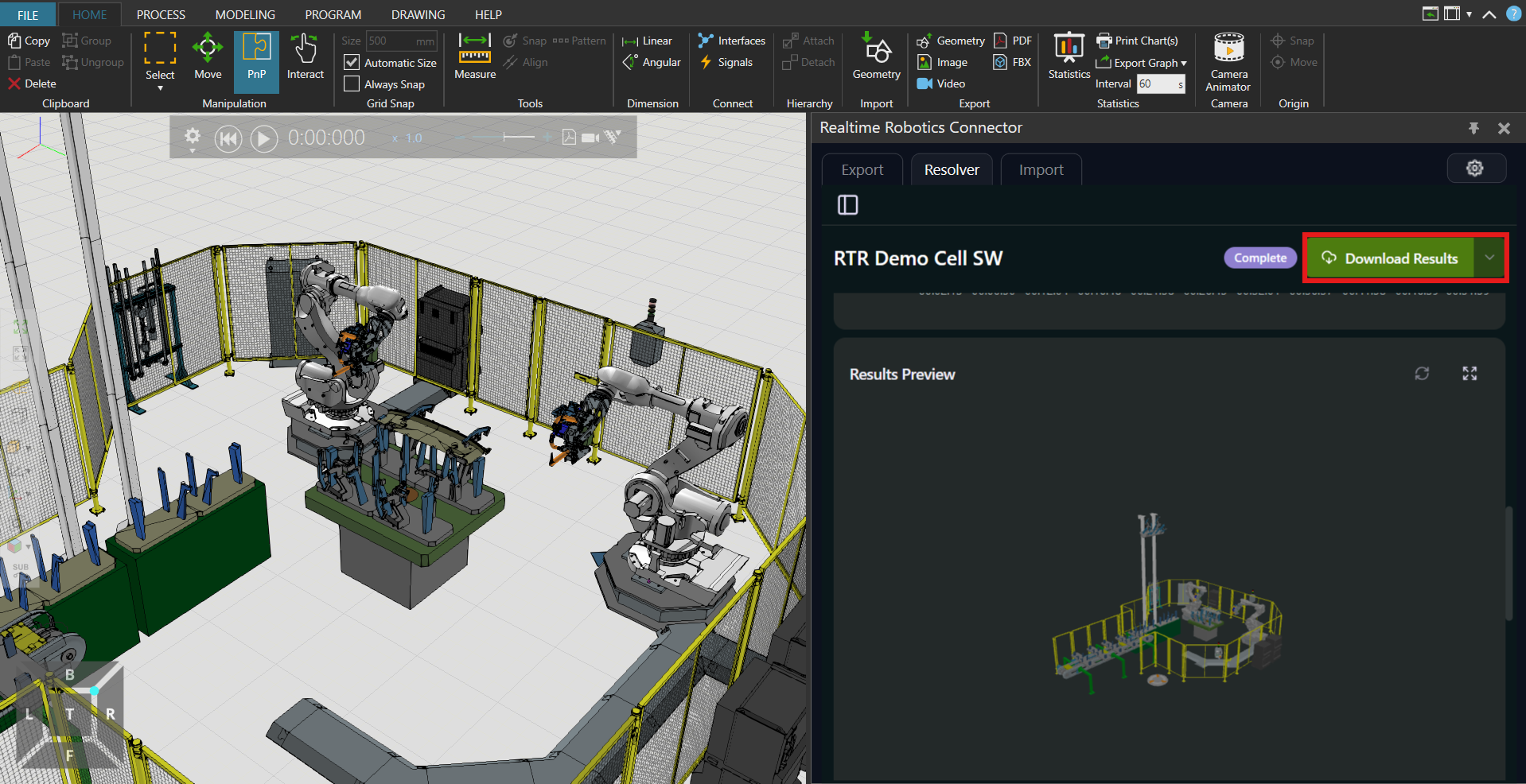
-
Select the interlock type and count, then click Import.
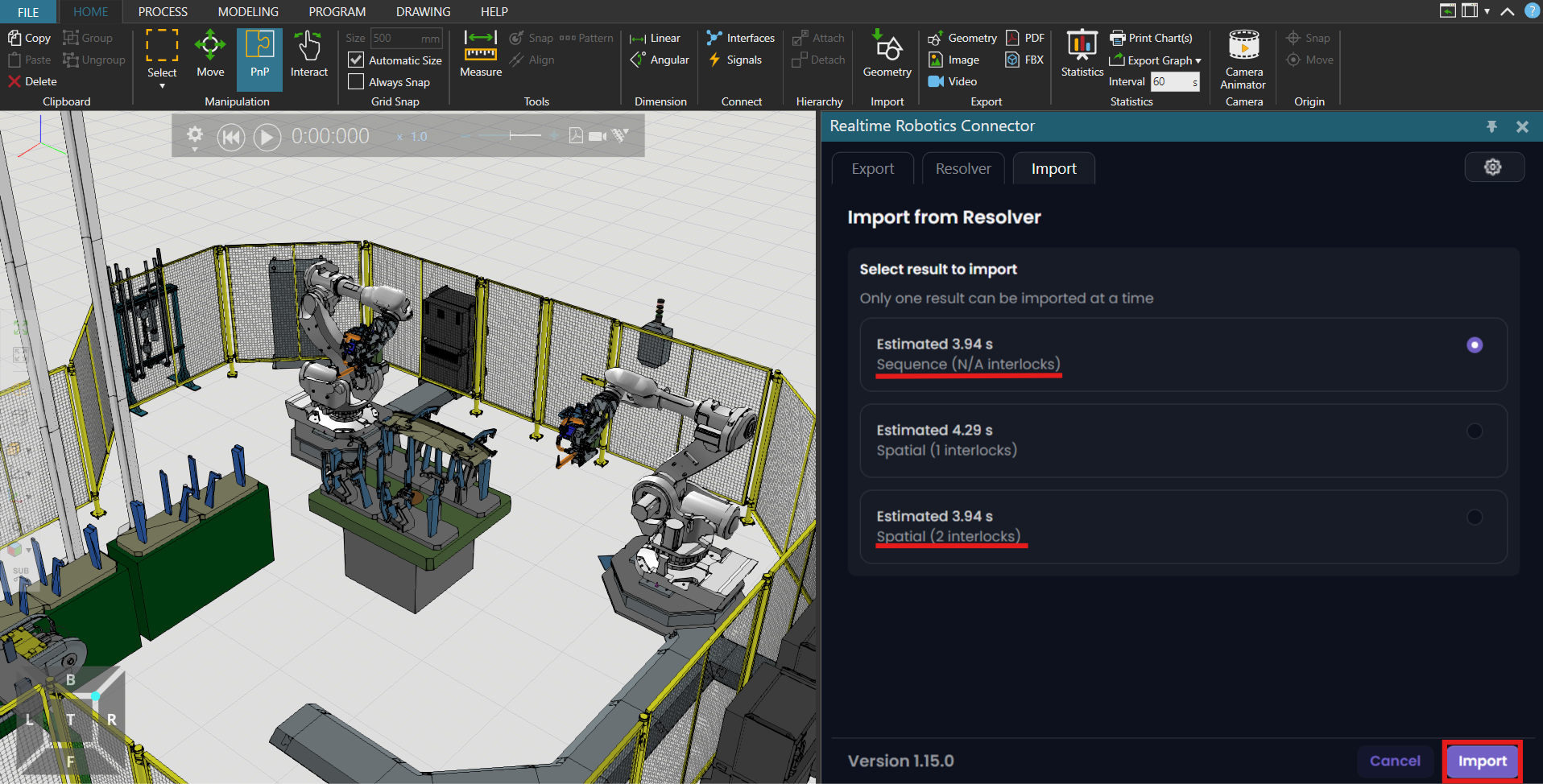
-
The optimized sequence(s) will be automatically added to all applicable robots.
If only one robot sequence was exported, only that robot will receive an optimized path.
Offline Import
Make sure Automatically Connect to the Cloud is toggled off in Settings to enable importing from a local file.
-
Unzip the downloaded results folder before proceeding.
-
In the import dialog, browse for the
.yamlresult file you downloaded from Resolver Cloud. -
Choose which result to import — sequential or spatial reduced — and select the desired number of interlocks. More interlocks means a shorter cycle time.
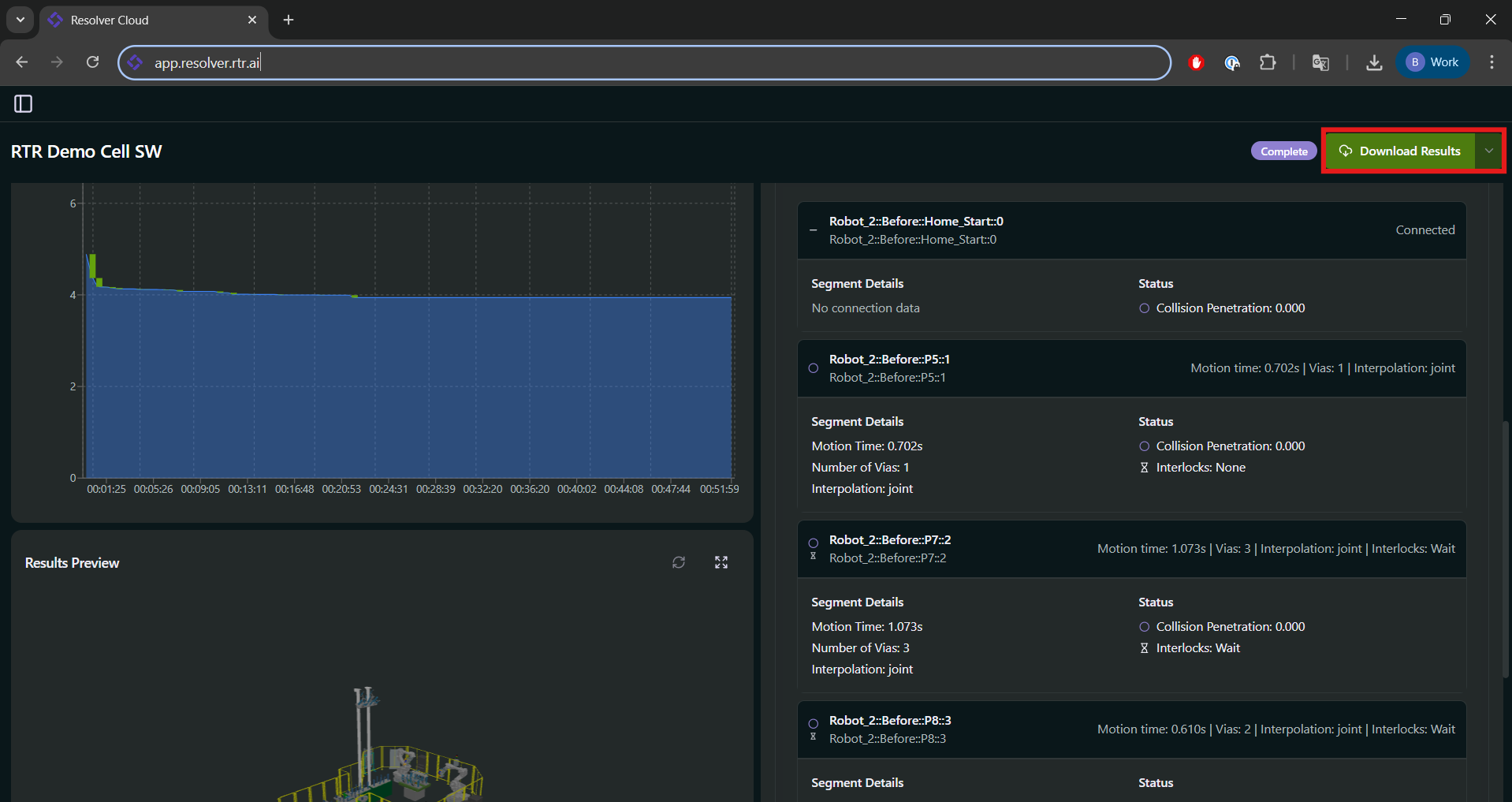
After Import
Once the import is complete:
- In the Visual Components Program Editor, the new Resolver-generated path sequence will be visible.
- Add this imported sequence to your main sequence to integrate it.
- Press Play to review the optimized, collision-free motion paths created by Resolver.
Your optimized results are now live in your Visual Components study.