Navigate Projects
Projects, Folders, Cells, and Studies
Work in Resolver is organized in a tree. A ProjectA project contains one or more studies. holds FoldersA container in a Resolver project used to group cells and other folders. Folders can be nested. and CellsThe level of the Resolver project tree that holds Studies. Connectors export to a cell; folders and projects are not valid export targets., and each Cell holds the StudiesA collection of one or more robots, targets, and obstacles used for path planning and interlock generation. Studies are exported from a Simulation tool using a Connector and uploaded to Resolver. exported to it from a Connector. Folders can be nested.
Connectors export to a Cell. Folders and Projects are not valid export targets.
Project Page
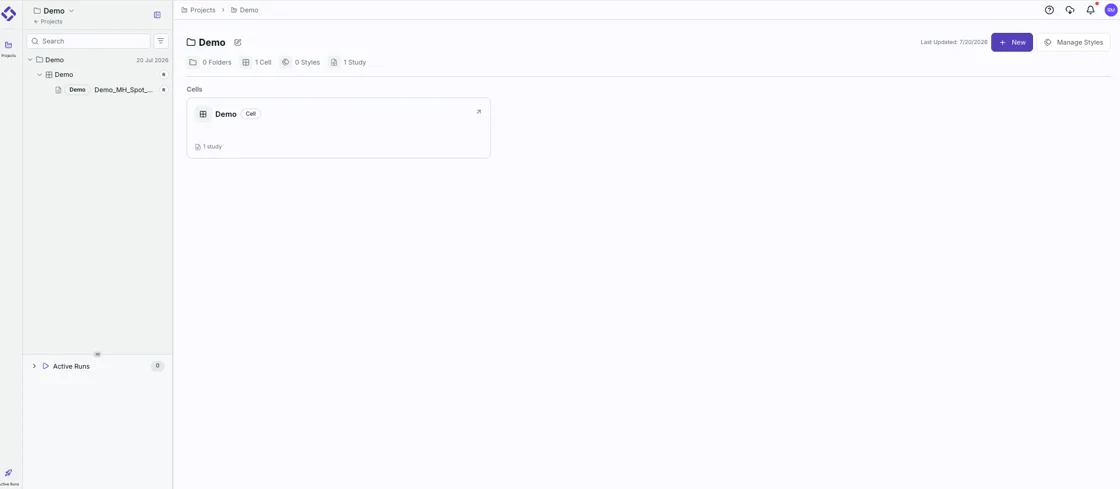
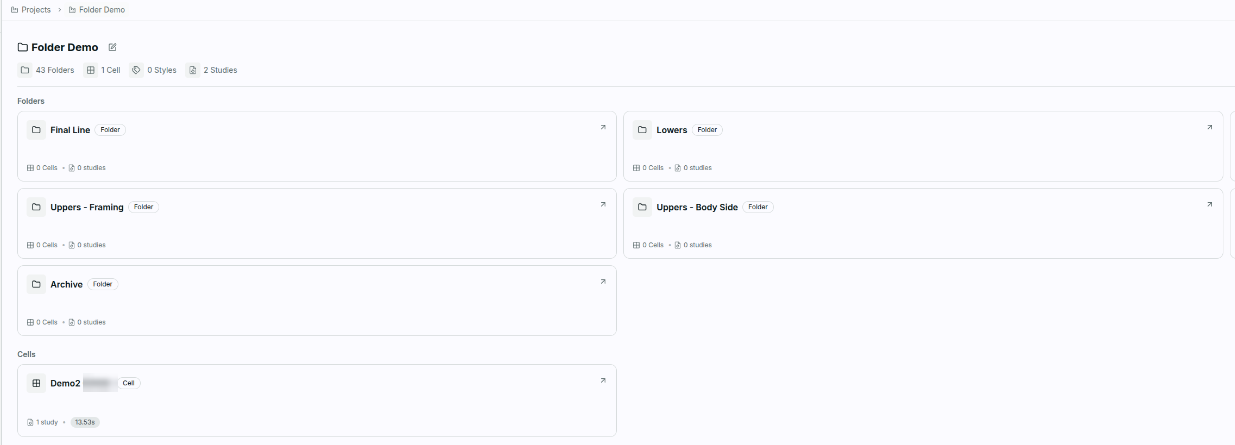
The project page summarizes what a Project or Folder contains, so you can see the shape of the work before opening anything.
Clicking a Folder or a Cell in the sidebar tree opens this card summary in the main view rather than a list. The list view stays in the tree sidebar, so you can keep working down the tree on the left while the main view describes wherever you are. StudiesA collection of one or more robots, targets, and obstacles used for path planning and interlock generation. Studies are exported from a Simulation tool using a Connector and uploaded to Resolver. are the exception: clicking into a Study to see its RunsAn instance of a study and query computed by the Engine and generates motion paths, interlocks, and/or robot task allocation and ordering. Multiple runs can be executed in parallel by using multiple a... shows a list in the main view.
-
The header shows the name and a count of Folders, Cells, Styles, and Studies.
-
+ New creates a Folder or a Cell in the current location, and Manage Styles opens the Styles list. Both sit at the top right of the page, next to the date the contents were last updated.

-
Folders and Cells are listed as cards. A Folder card shows how many Cells and Studies it holds, and a Cell card shows how many Studies it holds. Use the arrow in the corner of a card to open it.
-
The breadcrumb above the title walks back up the tree.
-
The project screen can be sorted, and it scrolls, so a long list of projects stays easy to browse.
Sidebar
The sidebar is a directory of everything you can reach.
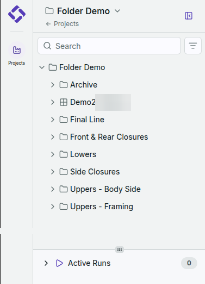
- Switch Projects from the control at the top.
- Search by name, or use the filter icon next to the search box to narrow the list. Search is usually the fastest way to reach a Project. The main view has a project search box of its own if you would rather search from there.
- Expand a Folder to see the Folders and Cells inside it. Hover over an item to see when it was last modified, which is a quick way to find recent work without opening each one.
- Active Runs sits at the bottom of the sidebar with a count of the RunsAn instance of a study and query computed by the Engine and generates motion paths, interlocks, and/or robot task allocation and ordering. Multiple runs can be executed in parallel by using multiple a... in progress.
- Collapse the sidebar to a narrow bar when you want the screen space. The icons on the collapsed bar still reach Projects and Active Runs.
Help, Downloads, Notifications, and the User Menu
These four sit in the top right corner of the page.
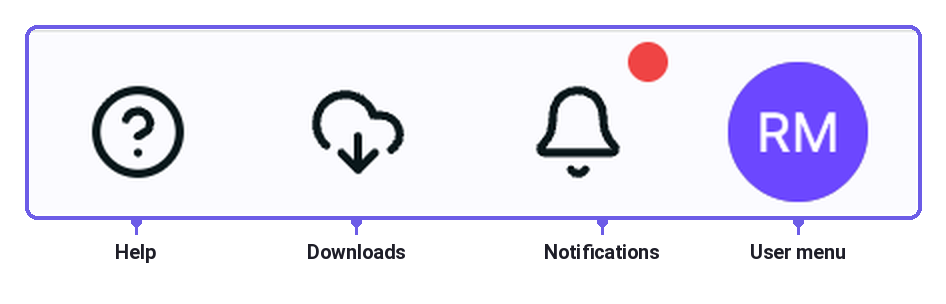
- Help holds guides and user manuals, the support page, and Report Feedback to Support.
- Downloads has the Connector installers and demo cells. See the download and install page for your Connector.
- Notifications flags Runs and other activity that need your attention. It opens as a sheet over whatever page you are on rather than as a page of its own, so closing the sheet puts you back where you were.
- The user menu carries account settings and sign out.
Where to Go Next
- Configure a Run on a Study in a Cell.
- Report feedback to support if something in a Study or Run does not look right.