Missing collision sets
Platform: Process Simulate
Resolver reports robots that are not in any active collision set in Process Simulate. Until that is fixed, collision handling for those robots relies on fallback rules in Resolver, which may miss or misreport contacts.
Dialog shown in Resolver
Robot: {robotName1}, {robotName2}, ... are not included in any active collision set
What you can do in this dialog
- Can you continue export? Yes
- Buttons in the popup: OK
- What happens next: Acknowledging the message lets you proceed with the export.
- Next step: See impact if you continue
Impact if you continue
You may acknowledge the warning and proceed only when you know the robots named in the dialog are out of scope for collision-aware work in Resolver—for example:
- Those robots do not perform motions you will optimize or validate in this study (they are idle, background, or excluded from the scope you care about).
- You are exporting only to inspect layout or non-collision behavior, and you will not treat Resolver’s collision output for those robots as authoritative until collision sets are assigned.
- You accept that Resolver will apply default collision rules for robots with no active collision-set membership, and your process (reviews, tests, sign-off) explicitly allows that interim state.
For any study where those robots participate in motion planning or collision-checked results, fix collision sets before relying on the export.
Otherwise, you are accepting weaker collision semantics. Process Simulate uses collision sets to define robot ↔ world, robot ↔ robot, and self-collision (robot vs its own links and tools) rules.
If a robot is missing from all collision sets, Resolver falls back to default collision rules, which may hide real collisions, report false collisions, or behave inconsistently. Without collision sets tied to those robots, Resolver cannot reliably determine which objects a robot must avoid or which interactions are allowed.
How to fix it
- In Process Simulate, open Collision Sets from Home → Collision or Tools → Collision (depending on your version). The collision set list opens for editing.
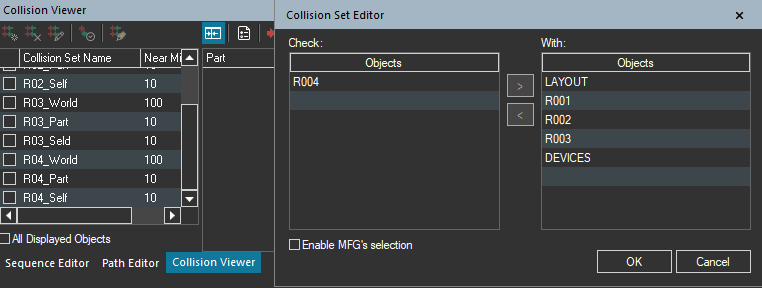
The Collision Viewer lists your sets. When you open a set for editing, the Collision Set Editor appears with Check (objects to monitor) and With (objects they are checked against)—populate both sides for the rule you are defining.
-
For each robot listed in the Resolver dialog, add it to collision sets so it is covered by robot–world and robot–robot (when multiple robots exist) rules:
- Existing set (for example
Robot_to_World): open the set in the Collision Set Editor. Assign the robot under Check and put world geometry (fixtures, clamps, tools, layout, other non-robot objects) under With for a typical robot–world rule—or add other robots under With for robot–robot checks—so the set defines which collisions are evaluated. - No suitable set yet: click New Collision Set, name it (for example
R1_to_World), open it in the Collision Set Editor, then assign members under Check and With (for example by clicking objects in the station or using the list transfer arrows, depending on your Process Simulate version).
- Existing set (for example
-
Turn Active on for every collision set Resolver should use. Inactive sets are ignored.