Missing self-collision rules
Platform: Process Simulate
Resolver warns that the named robots have no self-collision rules configured in Process Simulate. Self-collision rules declare which parts of the same robot (links, dress, tool, and similar) must stay separated during motion so Resolver can reject unsafe configurations.
Dialog shown in Resolver
What you can do in this dialog
- Can you continue export? Yes
- Buttons in the popup: Continue, Cancel
- What happens next: Continue proceeds with the export. Cancel stops this export run.
- Next step: See impact if you continue
Impact if you continue
Choosing Continue completes the export without self-collision rules for the listed robots in the collision data Resolver uses.
Resolver then has no explicit constraints that specific pairs of bodies on the same robot (links, dress, tool, and similar) must stay disjoint. The engine can return motions that are feasible under robot–world and robot–robot rules yet still intersect the robot’s own geometry along the path—for example tool or dress volume passing through an arm link—because those self-pairs are not modeled as forbidden contact in what was exported.
Externally the path may look collision-free against fixtures and other robots while self-contact appears only when the full robot volume is inspected.
How to fix it
- In Process Simulate, open Collision Sets (Home → Collision or Tools → Collision, depending on version). Open the affected robot’s self-collision set (often named like
R01_Self) in the Collision Set Editor.
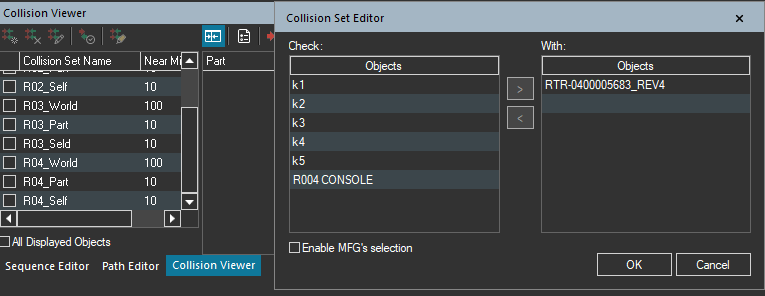
- Self-collision is usually defined as pairs in the Check and With lists: the tool and tennis bracket (dress bracket) on one side, robot body links on the other—always members of the same robot. Edit those lists as needed, turn Active on for the set, then re-export.