ダウンロードとインストール
PS ConnectorSoftware plugins, developed by RTR, that enables the export of projects from 3rd party simulation tools such as Process Simulate and Visual Components for use with Resolver. The Connector also enables... をダウンロードしてインストールし、Resolver を使い始めましょう。
ダウンロードするには、まずお使いの地域に対応した Resolver ページにログインし、左下の Downloads をクリックしてください。
ダウンロード後、Connector をインストールする方法は 2 つあります。Windows Installer が 推奨 の方法です。Legacy Installation Process の手順は代替の方法として使用できます。
Windows Installer(推奨)
-
続行する前に Process Simulate を閉じてください。
-
ダウンロードしたファイルを解凍し、
RTR-PS-Connectors-Setup.exeファイルをダブルクリックしてアプリケーションをインストールします。 -
PS Connector を現在のユーザー用にインストールするか、すべてのユーザー用にインストールするかを選択します。
-
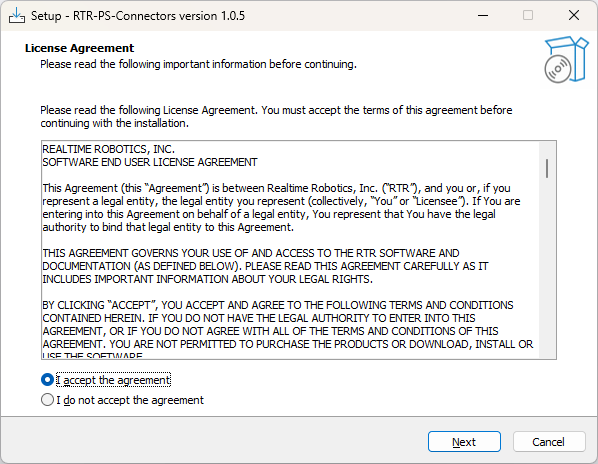
使用許諾契約を確認し、同意します。
-
「Next」を押した後、「Install to existing version or versions」を選択します。
-
ConnectorSoftware plugins, developed by RTR, that enables the export of projects from 3rd party simulation tools such as Process Simulate and Visual Components for use with Resolver. The Connector also enables... を保存するフォルダーを選択します。
C:\Program Filesがデフォルトかつ推奨のフォルダーです。 -
インストール対象の Tecnomatix Process Simulate のバージョンを選択します。
-
Install を押し、インストール完了後に Finish を押します。
-
Process Simulate を開きます。
-
リボンの
Viewersボタンから RTR Resolver Viewer を選択します。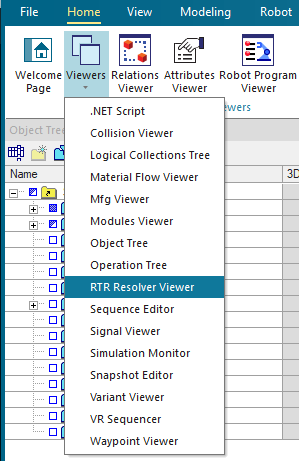
-
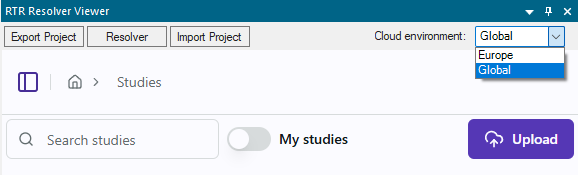
初めて RTR Resolver Viewer を開く際には、お使いの地域に応じて RTR Resolver Viewer の右上で Cloud 環境を選択する必要があります。
- Europe: ヨーロッパ地域
- Global: アメリカ、APAC、その他すべての国
レガシーインストール手順(DLL の手動登録)
以下の手順に従って、.DLL ファイルを Process Simulate フォルダーに手動で追加します。「Windows Installer」の手順が完了している場合は、この作業は不要です。
-
Process Simulate を閉じます。
-
ダウンロードしたファイルを解凍し、「RTR-PS-Connectors-Setup.exe」アプリケーションをダブルクリックします。
-
PS Connector を現在のユーザー用にインストールするか、すべてのユーザー用にインストールするかを選択します。
-
使用許諾契約を確認し、同意します。
-
ファイルを展開するフォルダーを選択します。
-
必要な Process Simulate のバージョンを選択します。
-
ファイルを展開するために指定したフォルダーへ移動します。
- 使用したい PS バージョンに対応した正しいフォルダーへアクセスすることが重要です。ConnectorSoftware plugins, developed by RTR, that enables the export of projects from 3rd party simulation tools such as Process Simulate and Visual Components for use with Resolver. The Connector also enables... ファイルはバージョンごとに異なります。
-
解凍したすべての DLL ファイルを、お使いのバージョンに対応したパスの「DotNetCommands」フォルダーへコピー&貼り付けします。
C:\Program Files\Tecnomatic_2408\eMPower\DotNetCommands\RTR\重要: お使いのインストールパスは上記と異なる場合があります。
DotNetCommandsフォルダーの正確な場所については、管理者にお問い合わせください。指定のフォルダーへファイルを貼り付けるには、管理者権限が必要になる場合があります。 -
ダウンロードした「RTRCommands.xml」ファイルを「DotNetExternalApplications」フォルダーへコピー&貼り付けします。
-
Process Simulate を開きます。
-
リボンの
Viewersボタンから RTR Resolver Viewer を選択します。 -
初めて RTR Resolver Viewer を開く際には、お使いの地域に応じて RTR Resolver Viewer の右上で Cloud 環境を選択する必要があります。
- Europe: ヨーロッパ地域
- Global: アメリカ、APAC、その他すべての国