プロジェクトのナビゲーション
Project、Folder、Cell、Study
Resolver 内の作業はツリー構造で整理されています。ProjectA project contains one or more studies. は FolderA container in a Resolver project used to group cells and other folders. Folders can be nested. と CellThe level of the Resolver project tree that holds Studies. Connectors export to a cell; folders and projects are not valid export targets. を保持し、各 Cell には Connector からエクスポートされた StudyA collection of one or more robots, targets, and obstacles used for path planning and interlock generation. Studies are exported from a Simulation tool using a Connector and uploaded to Resolver. が格納されます。Folder はネスト(入れ子に)できます。
Connector は Cell にエクスポートします。Folder と Project は有効なエクスポート先ではありません。
プロジェクトページ
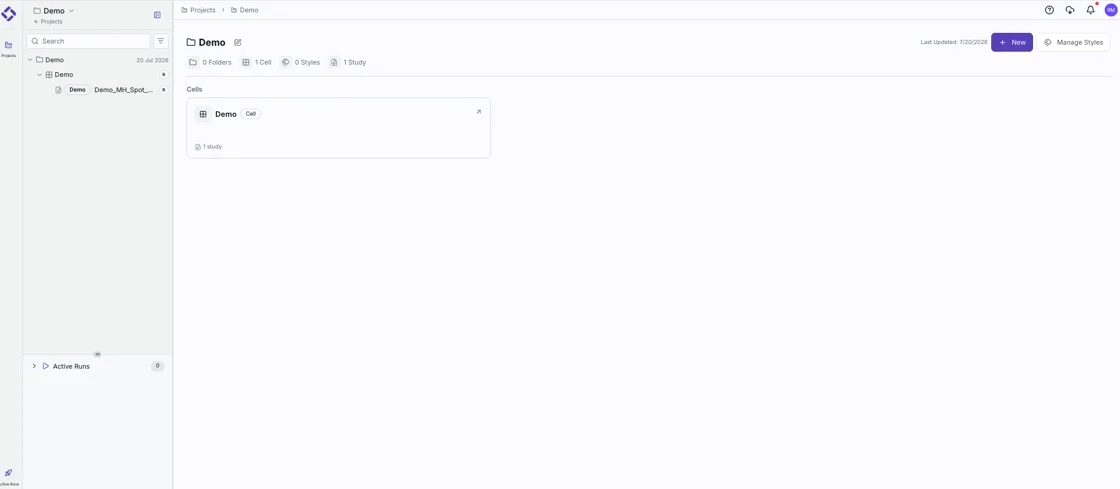
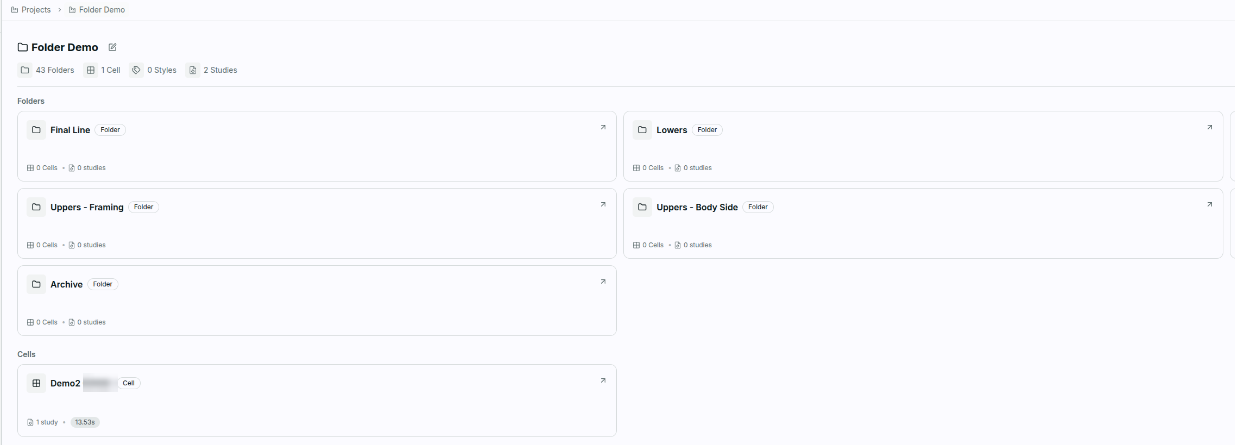
プロジェクトページには Project または Folder に含まれる内容がまとめて表示されるため、何かを開く前に作業全体の概要を把握できます。
サイドバーのツリーで Folder または Cell をクリックすると、リストではなくこのカードサマリーがメインビューに表示されます。リストビューはツリーサイドバー側に残るため、左側のツリーで作業を進めながら、メインビューで現在の位置を確認できます。StudyA collection of one or more robots, targets, and obstacles used for path planning and interlock generation. Studies are exported from a Simulation tool using a Connector and uploaded to Resolver. は例外で、Study をクリックしてその RunAn instance of a study and query computed by the Engine and generates motion paths, interlocks, and/or robot task allocation and ordering. Multiple runs can be executed in parallel by using multiple a... を表示すると、メインビューにリストが表示されます。
-
ヘッダーには名前と、Folder、Cell、Style、Study の件数が表示されます。
-
+ New は現在の場所に Folder または Cell を作成し、Manage Styles は Style の一覧を開きます。どちらもページ右上、内容が最後に更新された日付の隣にあります。

-
Folder と Cell はカードとして一覧表示されます。Folder カードにはそこに含まれる Cell と Study の件数が、Cell カードにはそこに含まれる Study の件数が表示されます。カードの角にある矢印を使って開きます。
-
タイトル上のパンくずリストからツリーを遡ることができます。
-
The project screen can be sorted, and it scrolls, so a long list of projects stays easy to browse.
サイドバー
サイドバーは、アクセスできるすべての項目のディレクトリです。
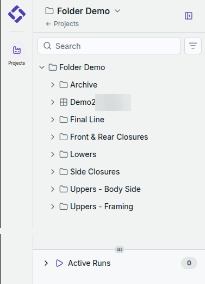
- 上部のコントロールから Project を切り替えます。
- 名前で検索するか、検索ボックスの隣のフィルターアイコンを使って一覧を絞り込みます。検索は Project にたどり着く最も速い方法です。メインビューにも独自の Project 検索ボックスがあるため、そちらから検索することもできます。
- Folder を展開すると、その中の Folder と Cell が表示されます。項目にカーソルを合わせると最終更新日時が表示され、各項目を開かずに最近の作業をすばやく見つけられます。
- Active Runs はサイドバー下部にあり、実行中の RunAn instance of a study and query computed by the Engine and generates motion paths, interlocks, and/or robot task allocation and ordering. Multiple runs can be executed in parallel by using multiple a... の件数が表示されます。
- 画面領域を広く使いたい場合は、サイドバーを細いバーに折りたたむことができます。折りたたんだバーのアイコンからも Project と Active Runs にアクセスできます。
Help、Downloads、Notifications、ユーザーメニュー
これら 4 つはページ右上にあります。
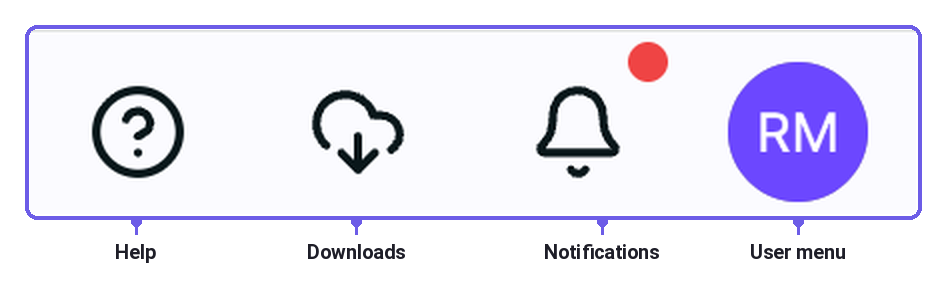
- Help には各種ガイドとユーザーマニュアル、サポートページ、Report Feedback to Support が含まれます。
- Downloads には Connector のインストーラーとデモ Cell があります。お使いの Connector のダウンロードとインストールのページを参照してください。
- Notifications には、対応が必要な Run やその他のアクティビティが表示されます。 It opens as a sheet over whatever page you are on rather than as a page of its own, so closing the sheet puts you back where you were.
- ユーザーメニュー にはアカウント設定とサインアウトがあります。
次のステップ
- Cell 内の Study に対して Run を設定する。
- Study や Run の結果に問題がある場合は サポートにフィードバックを送る。