Exporting Study
What is exported?
Elements of a Process Simulate Study need to be exported to Resolver in order to optimally generate motion paths, interlocks, and allocate tasks. The PS ConnectorSoftware plugins, developed by RTR, that enables the export of projects from 3rd party simulation tools such as Process Simulate and Visual Components for use with Resolver. The Connector also enables... gathers the necessary CAD objects, kinematics, dynamics, operations, and targets from the PS study and automatically uploads it to Resolver upon Export.
The exporter generates a .zip file that is interpreted by Resolver. Within the .zip file, the following files are created:

project.yaml
Defines how the engine should build the workcell. It has references to all items in the objects and robot_models folders. The engine looks at this file to define how objects are positioned and mated.
queries.json
Defines the query generated from the exporter. The operations, targets, precedence constraints, etc are defined here.
metadata.json
Collects some performance and study data that is used to tailor the user experience.
objects
Stores all the .jt files of static objects that are exported.
robot_models
Stores the .jt files of robot models that are used along with kinematic definitions from the project.yaml to create virtual robot models.
Preparing for Export
Displayed Objects
Any objects (including robots) that are currently displayed will be included in the export that is sent to Resolver.
- Blank any objects that are not necessary for motion planning. This can dramatically reduce file size and collision check calculations, improving performance.
- Any robots not blanked with no associated operation exported will be exported as static objects in their current pose.
Dynamic Link Attachments
What are dynamic link attachments?
Dynamic link attachments are objects in your Process Simulate study whose position or shape depends on the robot’s joints—for example, cables, linkage bars, dress packages, or other devices that move with the robot. Because they move with the robot, they can affect collision checking and must be included in the exported collision geometry when they are relevant for motion planning.
Use Export dynamic link attachments in the Resolver exporter when your Process Simulate study contains such robot-linked dynamic objects that must be included in the collision geometry Resolver loads.
- Dynamic joints and devices listed in Robot Jog -> All Joints are treated as dynamic robot-linked geometry in Process Simulate; Resolver still applies this Resolver exporter toggle when importing the study.
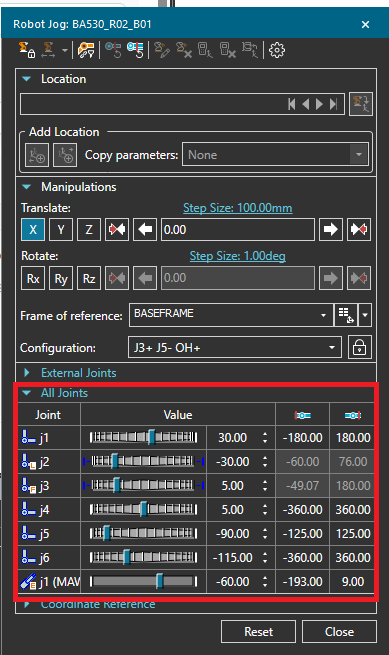
- If an object is dynamic because it depends on robot joints, but it is not listed in Robot Jog -> All Joints, enable Export dynamic link attachments in the Resolver exporter so Resolver includes it.
- Enable this when the attached device is collision-critical for planning accuracy.
- Leave it disabled when those attachments are not required, to keep export scope smaller.
- Large, complex dynamic attachments can increase computation time. For example, dress packages represented by dozens of spherical primitives add collision geometry that can slow export and planning.
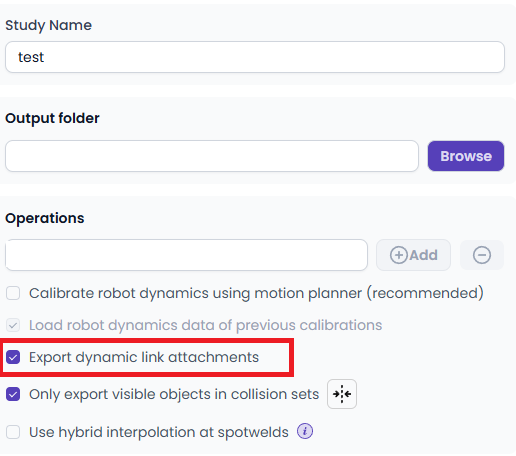
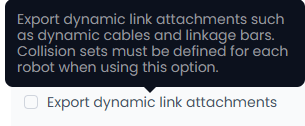
When this option is enabled, make sure the relevant robots have active collision sets configured in Process Simulate.
If Resolver reports attachment-related export issues, see:
Collision Sets
It is very important that collision sets are enabled and set up correctly. The defined collision sets in PS are translated into collision_rules in the project.yaml. These collision rules are used by the Resolver engine during motion planning. If the collision sets are improperly or not fully defined, the user may see unexpected motion paths in the results.
- All collisions set up and enabled by the PS collision sets feature will be set as a hard collision rule in the engine. The engine will never violate a hard rule.
- The Near Miss value associated with the collision set will be converted to a clearance rule in the
project.yaml. Clearance rules are soft rules which that will not be violated unless required.- For any Collision Sets that have process points near them, it is highly recommended to use a Near Miss value < 2mm.
- Note: Please take care when setting near miss values. After running many studies through Resolver, our customer success team has noted that humans often do not adhere to their own clearance rules when making paths.
- Example: A short distance between two spot welds where a human would not place a via between the depart of the first weld and approach of the second weld. If this is a planned path in Resolver and the depart position violates a near miss value, the engine will add a via between the two welds to attempt to move out the weld gun out of clearance violation.
- Minimum recommended collision sets:
- Robot-Robot: Collision sets between robots. Resolver supports a single clearance rule for all robots in the study. Therefore, it will use the largest robot-robot near miss value found in all collision sets.
- Robot-Scene: Collision sets between robots and static objects in the scene. If you see results with collisions, it is typically because an object was not included in a collision set.
- Note: Many customers like to use more granular collision sets such as robot-structural, robot-jig, robot-part, tool-part. This allows for individual clearance rules for each collision set.
- Robot-(Tool+RTU): This is a self-collision set. If your application will generate motions where the robot must tuck close to itself, it is recommended to setup a collision set that prevents self-collisions.

Other applications can be supported as a service with the assistance of an RTR Application Engineer. Please enter a support ticket if you are unsure if your study is supported or would like to run a study that is outside of current tool support.
Dynamics Calibration
If selected, the exporter will run the robot through a series of motions to determine all joint dynamics for both joint and linear motion. The motion planner that is selected at time of export will be what is used to perform Dynamics Calibration.
- Always use an RCS motion planner if available. The estimated cycle time and dynamics can be drastically different if, for example, MOP is selected during export and RCS is used later.

- Solutions from Resolver can be greatly affected by dynamics, especially if there are many robot-robot deconfliction zones. If dynamics are not correctly encoded, please ensure the proper RCS connections have been made and re-run the dynamics calibration.
- Dynamics calibration takes time, but typically only needs to be done once per robot. Therefore, the dynamics will, by default, be cached locally on your machine and re-used for future exports.
- If something in your robot setup changes that will affect dynamics, such as a payload change, please use the optional checkbox to re-run dynamics calibration.
Executing Paths with MOP Motion Planner
RTR generated paths follow the same general concept that real robot controllers follow for synchronizing joints to reach the goal target at the same time. The MOP motion planner, however, does not exhibit this behavior by default. Collisions may be present in the path without properly setting the single_joint_prof parameter in the motionparameters.e file of the robot controller. From the Process Simulate motionparameters.e manual:
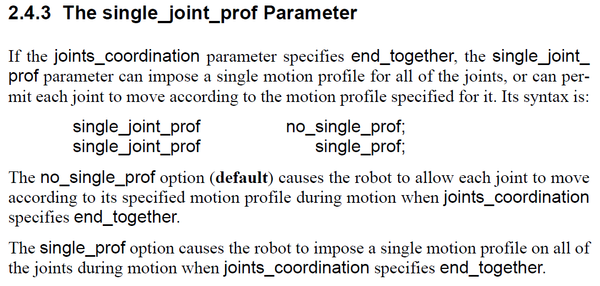
To match predicted movement by RTR and other robot manufacturers, please add the line single_joint_prof single_prof; to the motionparameters.e file.
Exporting Operations
Currently, Resolver is designed to export multiple operations or compound operations in Standard Mode. All exported operations will use any defined links (in Sequence Editor) between operations to determine precedence constraints. Some rules that apply to the operations selected:
- Only targets that the robot must reach should be included. Typically, this includes only the process points, but may also include a via if the process requires a stop at that pose. The path between each location sent to Resolver will be planned, unless specified as "direct" in the cloud UI.
- Every robot with operations must have a start and end pose defined. The exporter uses the implied start and end poses from the first and last locations in the robot's sequence of operations.
- If an operation has a robot assigned to it (can be checked in Operation->Properties->Process tab), a reachability check will be performed before export. If no configuration is defined by the user, the exporter will use whichever configuration the Process Simulate API selects with the "jump" function. The configuration, of course, can be optimized by Resolver if enabled through the cloud UI.
- If an operation is exported that has no robot assigned to it, the exporter assumes that all exported robots (still required to have start/end target defined) are allowed to reach that target. This is a common way to set up a "robot allocation" problem.
- Target order will be maintained in the results if Optimize Target Order is not selected.
-
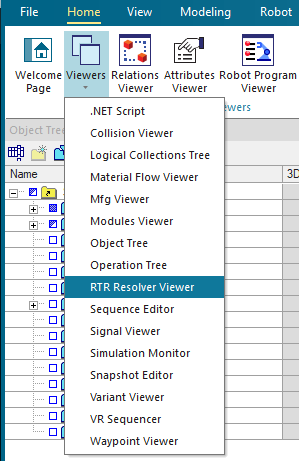
Please ensure the RTR Resolver Viewer is visible. If not, select it from the Viewers button on the ribbon.
-
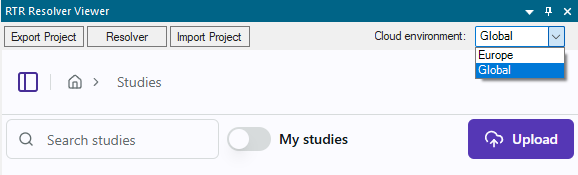
If you have not logged in, please first select the correct Cloud environment from the drop down menu.
- Europe: Located in Europe
- Global: Americas, APAC, all other countries.
-
In the Export section, give the export a Name (name of study)
-
Add operations or compound operations you would like to export by selecting from the
Operations Treeand then clicking the+Addbutton in the Export section. -
It is recommended to select "Calibrate robot dynamics (recommended)". If selected, the Exporter will move the robots through a series of locations using the robot controller currently selected. It will track the motions and record the dynamics of the joints. Weld guns will also be actuated at welds to capture task time at the process point. These values are embedded into the queries.json and are used by the Resolver engine to give a more accurate prediction of cycle time.
-
Select the robot OEM to specify which controller-specific smoothing options should be used. By default all of them are included. You can deselect any options that you don't want Resolver to use.
Note: The
FINEoption cannot be unchecked because it is required for interlocking at newly generated via locations. -
Click
Exportto export and automatically upload the study to the cloud.